SuperBox S5Max: How to setup and use it
admin / March 20, 2026
If you just got yours or you did a factory reset it comes with the basics, so you’ll need to do some downloading.
The owner’s manual helps on how to connect the SuperBox to your TV, but after that you’re on your own, but hopefully this guide will help you out.
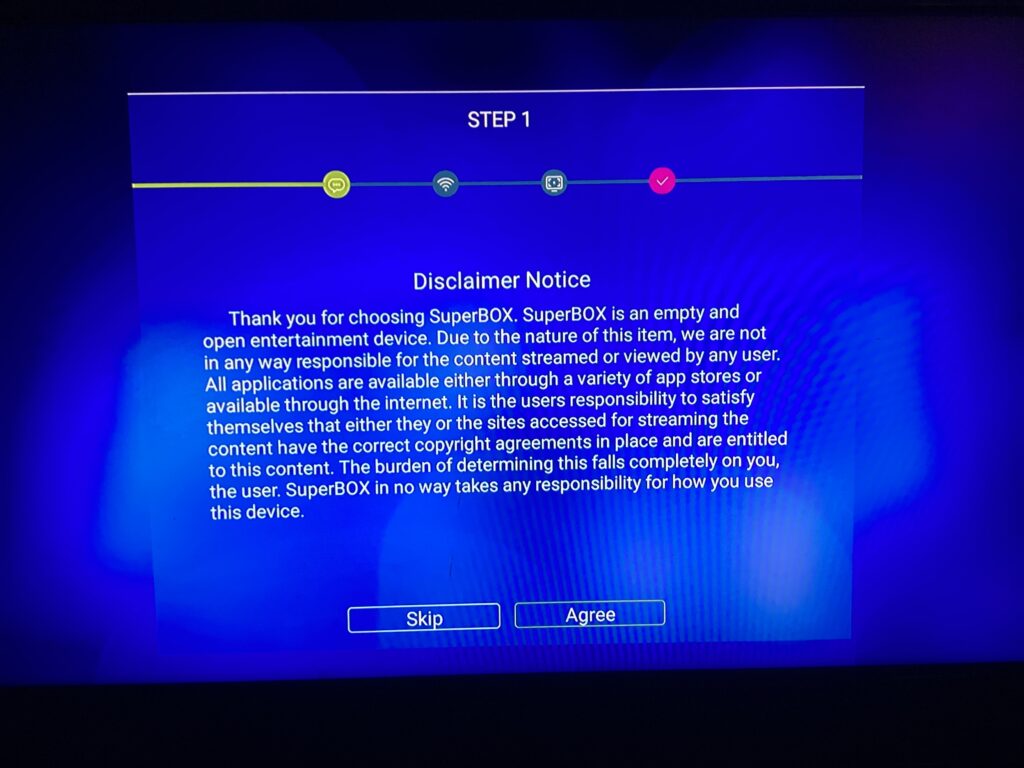
Upon turning the box on for the first time or form a factory reset you will have the basic setup like agreeing to the disclaimer notice.
Step 1: disclaimer notice
Step two: if you don’t connect to the Internet, practically this box is well basically a paperweight, Select the network, then enter the passcode if asked to do so.
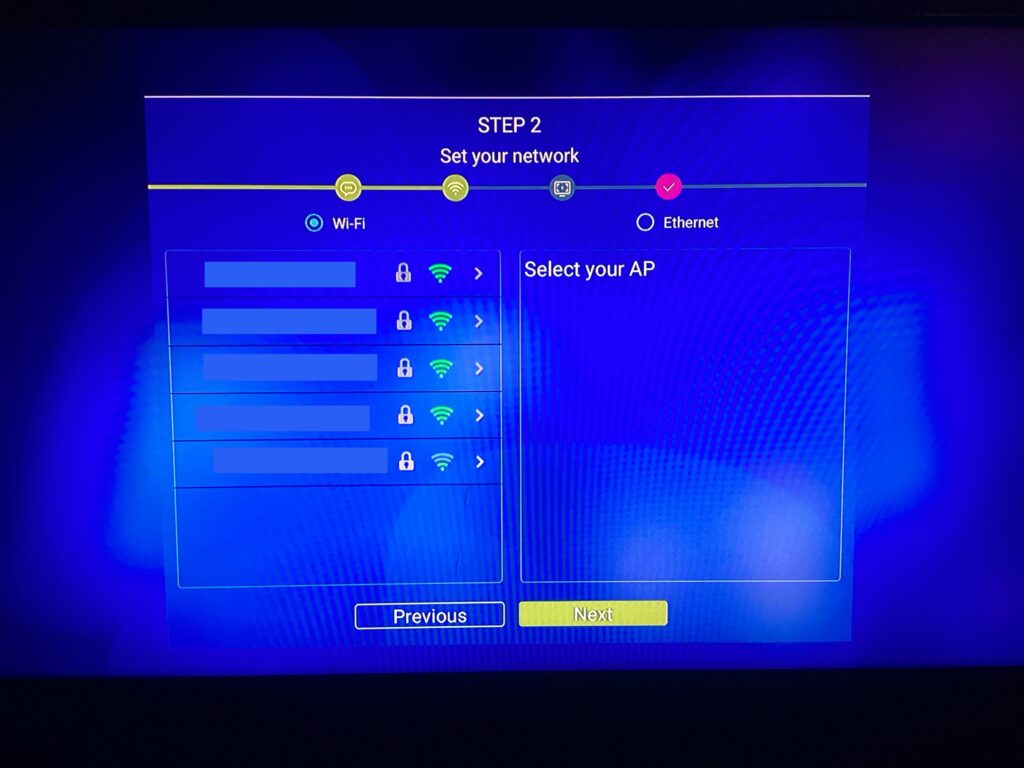
Once you select your network, you will need to enter the pass code (It is strongly recommended that you say show password before entering the password to ensure that you were entered incorrectly.
Step 3: in step three, you will set your screen size chances are you won’t need to change the screen size. If you do just use your up-and-down arrow on your Remote, Once you’re done, click on finished.
The home screen is rather kind of basic and you won’t be able to do much but I was going to change because we are going to add live TV and VOD for video on demand.
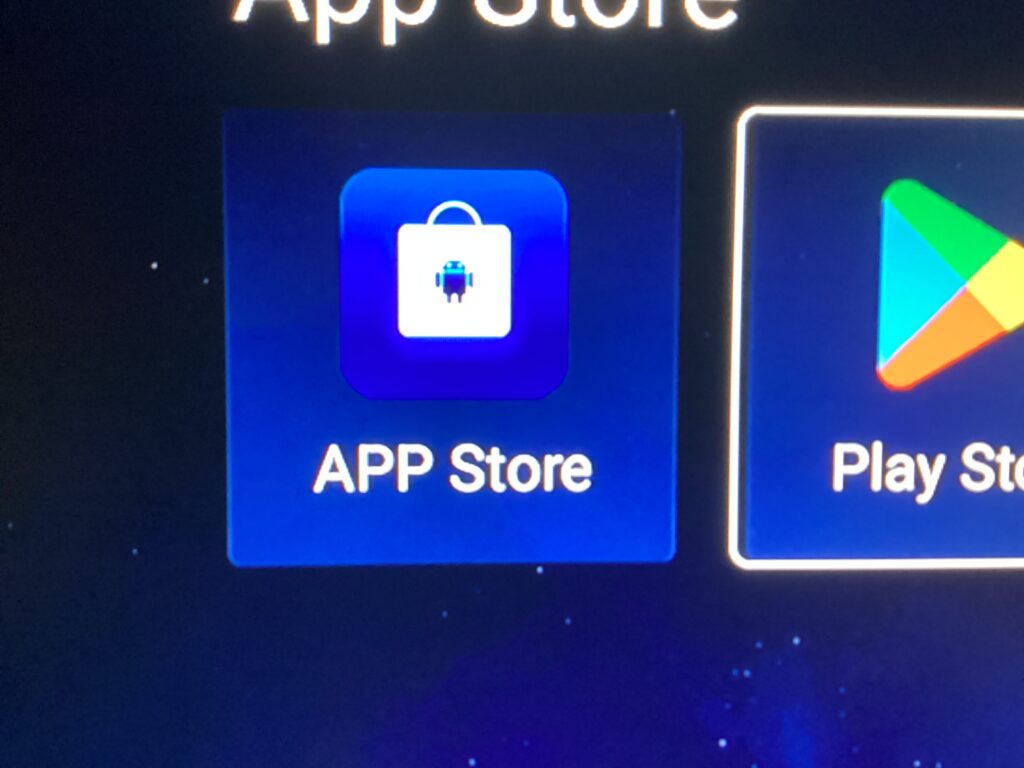
On the home screen tap on the icon that says “App Store”.
You will now see play store and you will see App Store click on App Store. You may get a confirmation
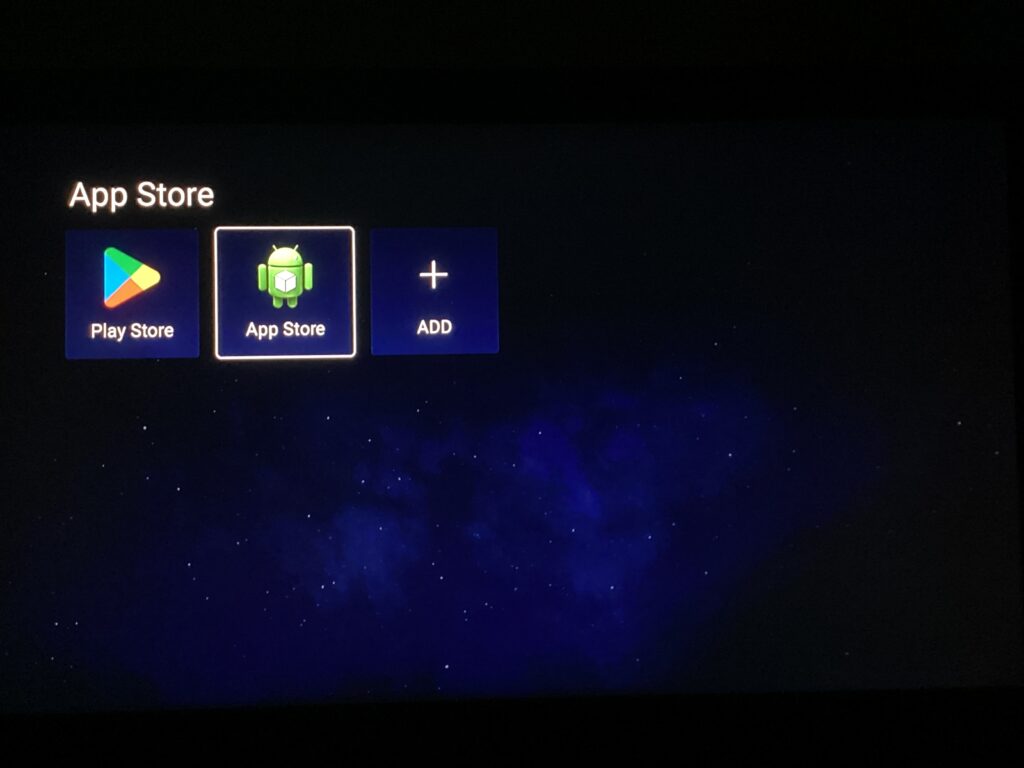
You may get a confirmation such as this
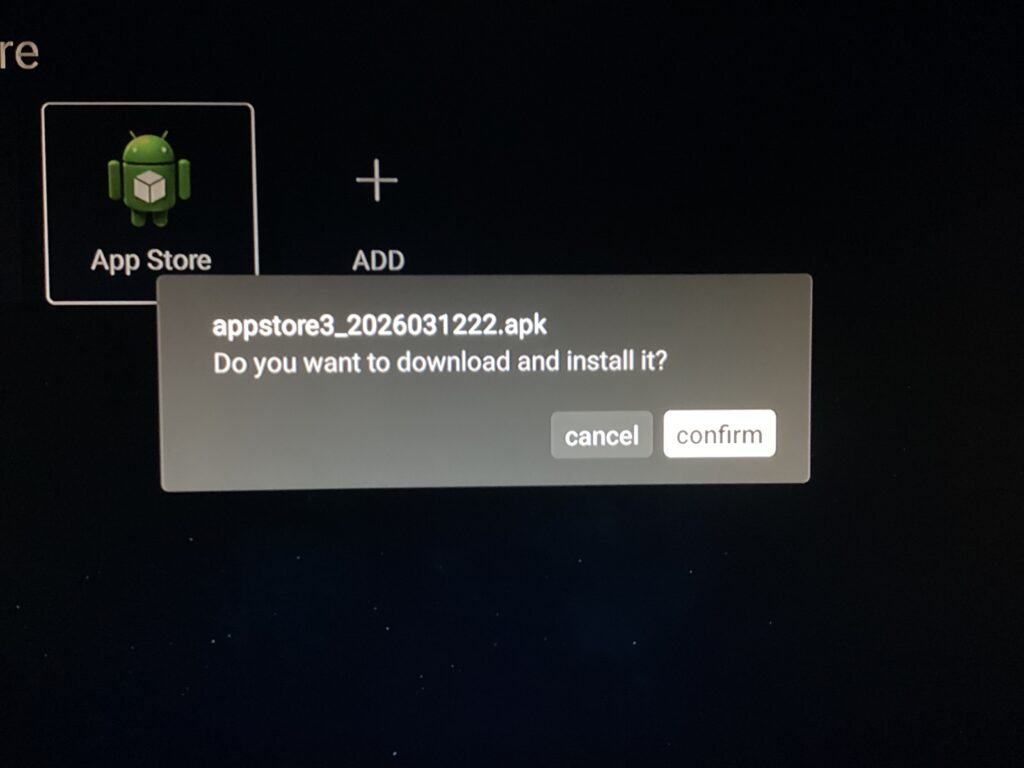
Once it has been downloaded and installed, it should look like this as seen in the screenshot below.
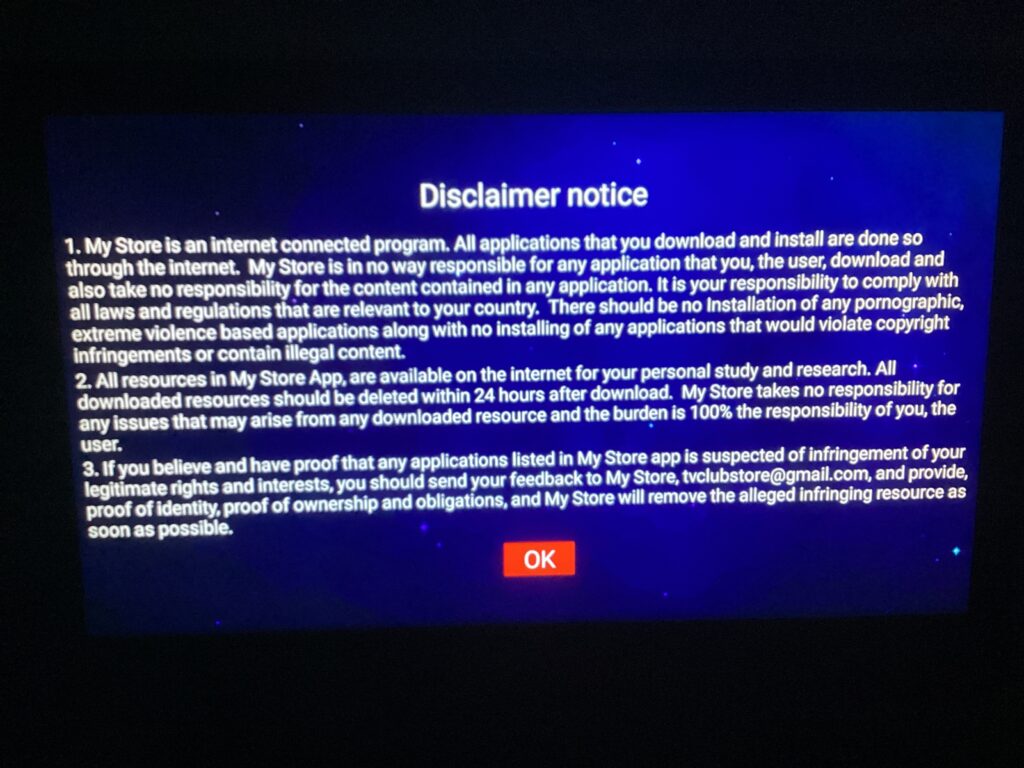
Once you open up the App Store, you will then receive a disclaimer notice as seen in this picture posted below.
once you accept the disclaimer notice it may take a few seconds for the apps to populate in the App Store, there are two apps or three apps that we are going to be downloading and that is blue VOD and Blue TV
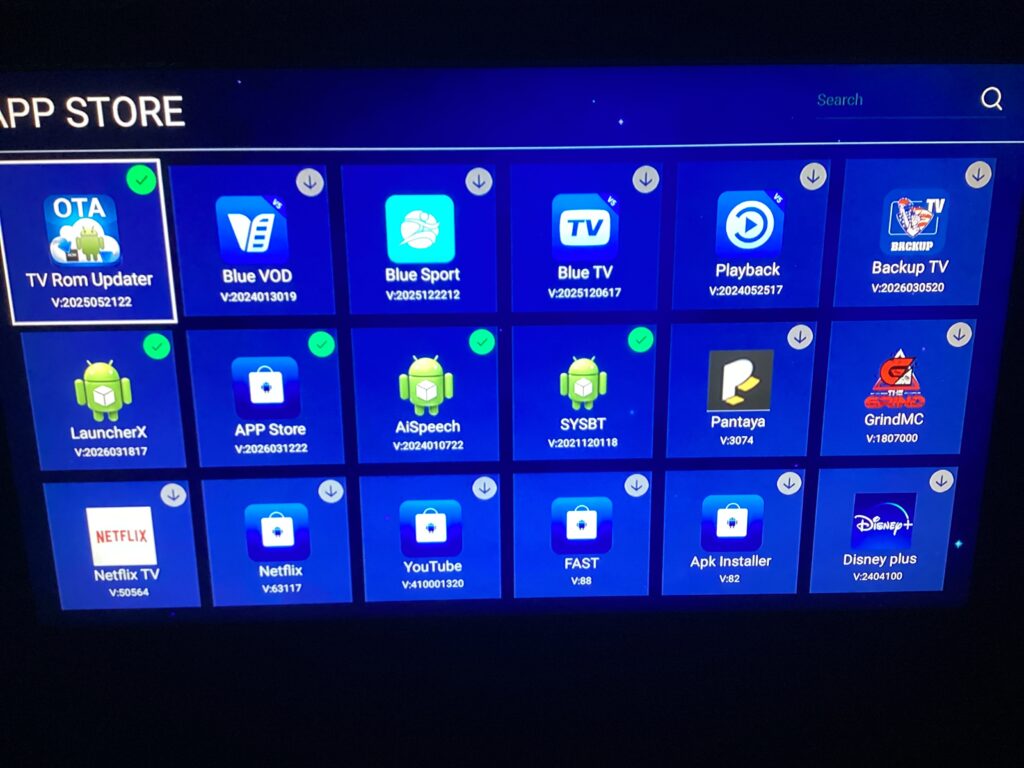
Now that they have been downloaded and installed, go back to the main screen and you’re going to do this for live TV and for VOD
Live TV: on the home screen tap on live, Then you’ll see a plus, Make sure that blue TV is selected then press