A walk-through your Tablo
admin / March 20, 2026
If you would like to read on how to install and set up your Tablo check out this article that we did here.
Home
When you open the Tablo app and you see what looks like a splash screen for either a movie or TV show this is home. On the home screen will usually have highlights of what is currently live right now, upcoming episodes or movies along with recently watched or recorded.
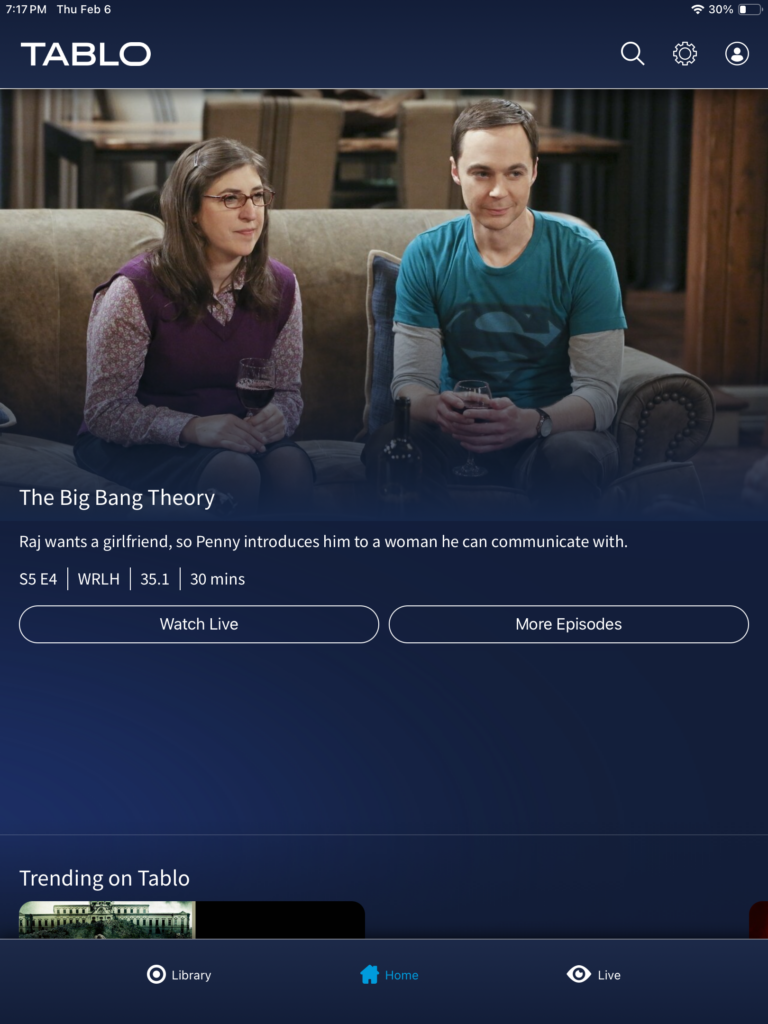
At the very bottom of the screen, we see library, home, which you are currently on right now and live.
Library is where all of your TV shows and movies that you have recorded will be here.
Home is the screen your on right now.
Live is going to display the EPG (electronic program guide)
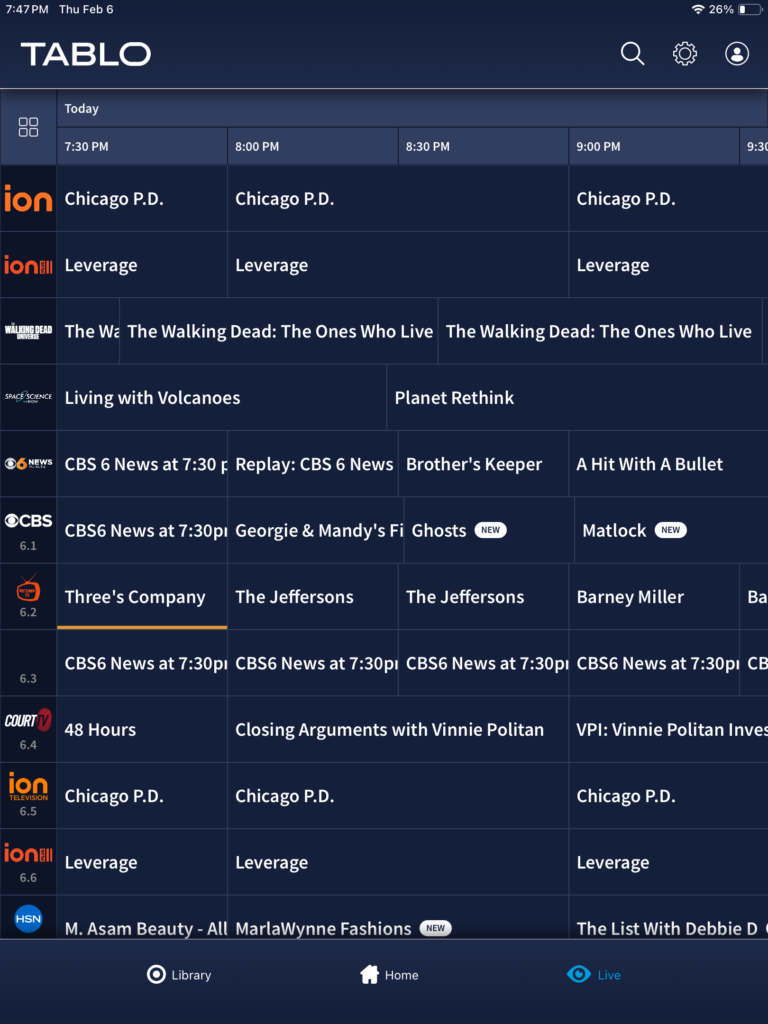
Let’s go ahead and tap on Live, to bring up the EPG. The EPG will look like this as seen in the picture below.
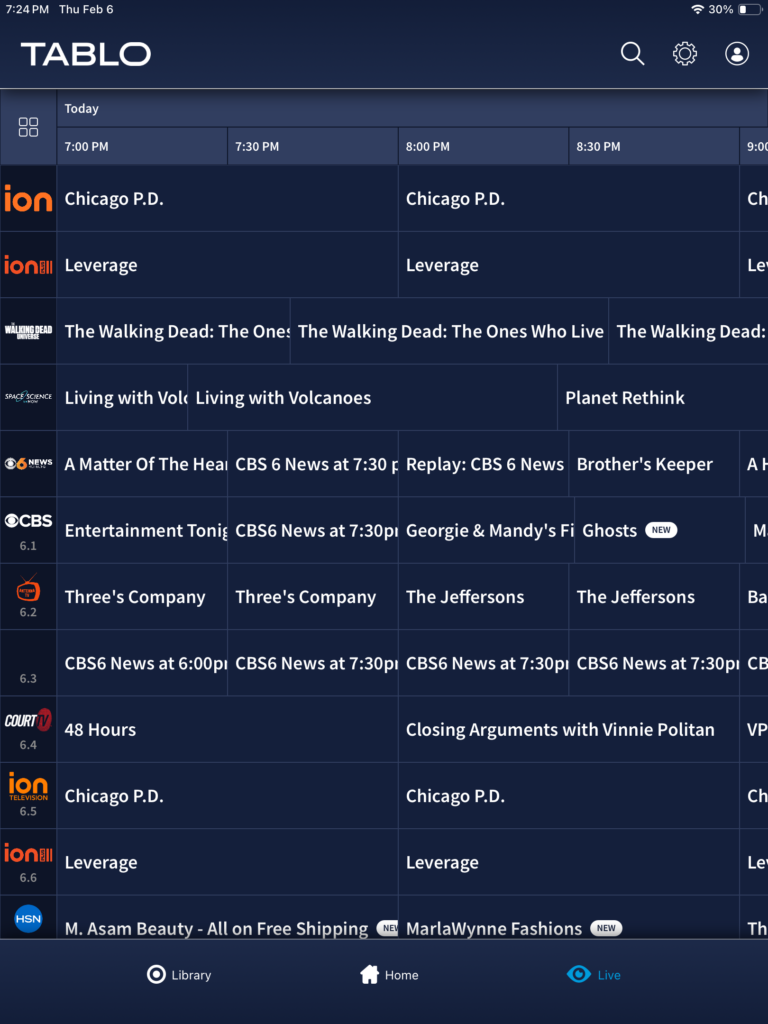
The EPG will usually display two or three hours ahead as seen in the picture above. This will be depending on your screen device and if it is landscape or portrait.
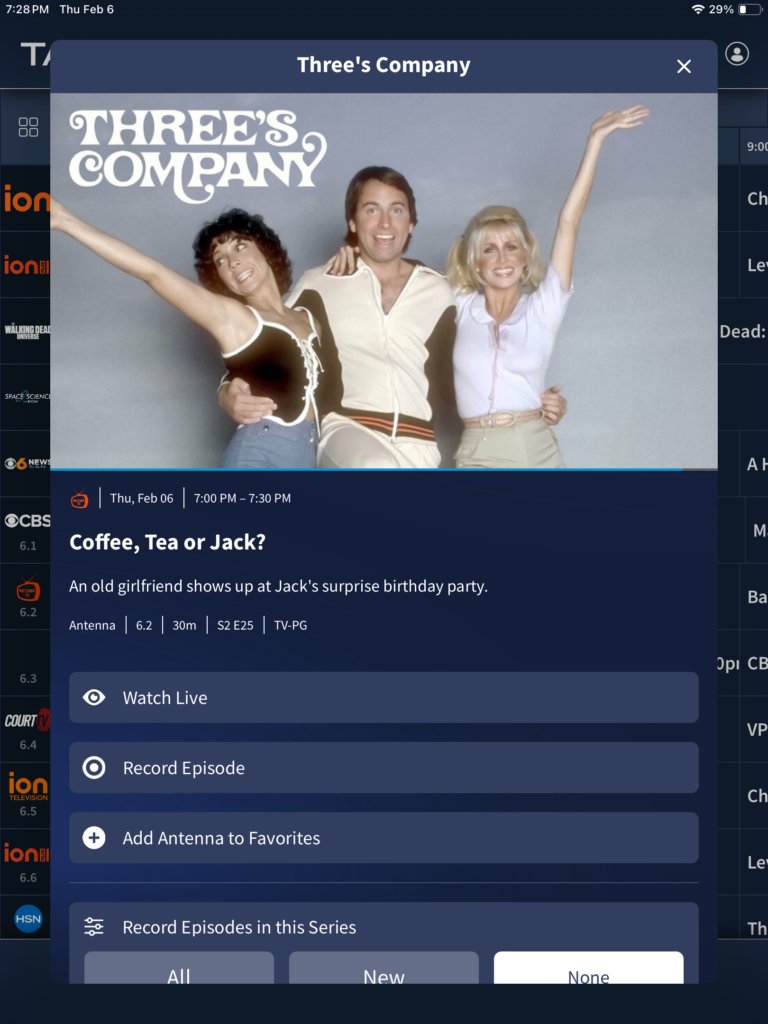
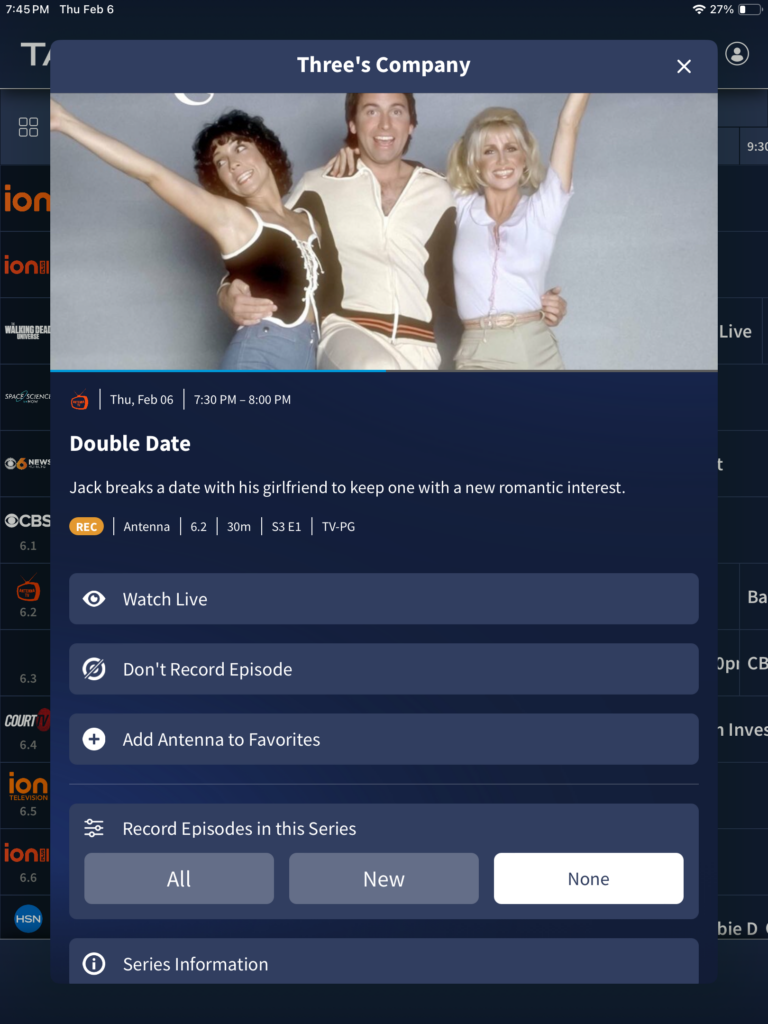
let’s say for example we want to watch “Three’s Company“, if you’re on an iPad, for example, tap on the show title’s name which will reveal a pop-up menu. The pop-up menu will contain some important information.
So what’s this important information?
- You’ll see the title
- TV show or movie poster
- if you look toward the bottom of the TV show or movie poster you’ll notice that there is a blue bar that doesn’t quite go all the way to the end, this is how much time is left of the program.
- below this indication, we have the channel icon, Day of week, month, date, time
- we have the episode name
- synopsis of what the programs about
- synopsis of what the programs about
- name of the channel, channel number, length of the program, season an episode, followed by the rating.
Now we have some buttons, most of them are pretty self-explanatory, watch is to watch, record episode, Add Antenna to favorites.
the next section deals with recording, this is asking if you want to record episodes in this series, you can choose all, new or none.
below this section, we have series information, this will reveal a new window.
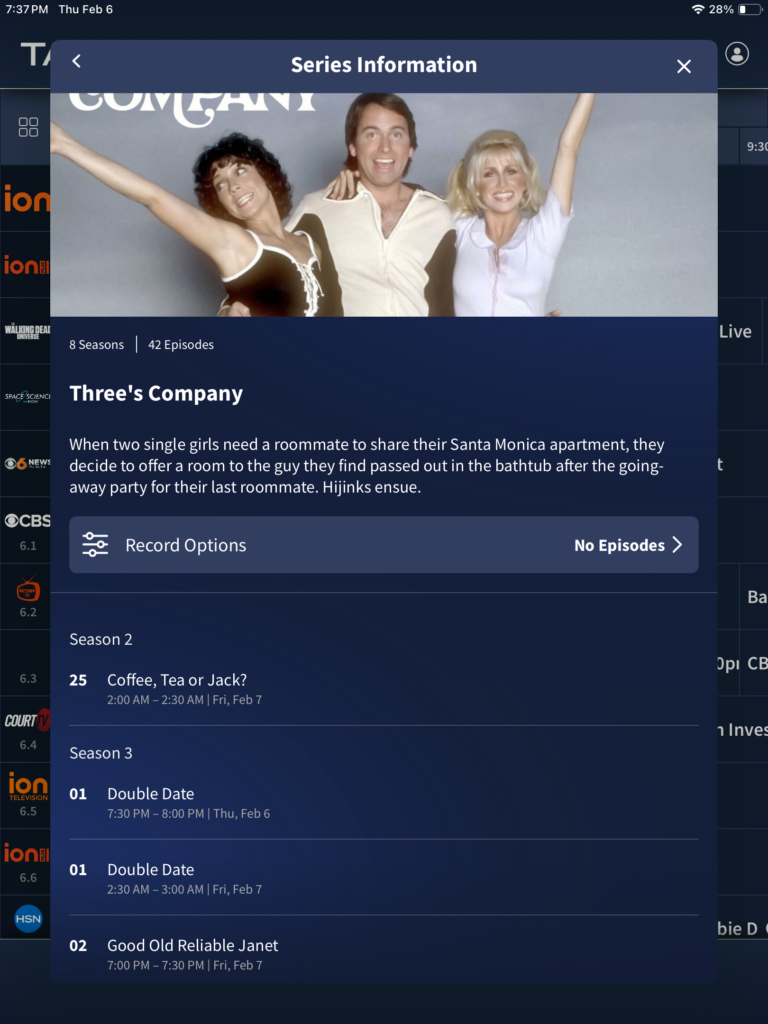
Series information
the series information will contain what upcoming episodes that is scheduled to air. if you look on the screen, let’s say that you want to get some more information on season two episode 25, simply tap on “ coffee, tea or Jack?” and this will give you the options to record the episode along with the synopsis about this specific episode. to go back to the current program that is in progress near the title where it says “series information on the left side you’ll see an arrow, tap on that arrow.
Let’s say that we want to record this episode that is currently in progress, tap on record episode, and you now noticed there is a yellow oval that says REC, this is letting you know that the program program is now currently recording. if you no longer wish to record this program tap on “ don’t record episode” and this will immediately stop the recording. For this example, we’re gonna let this show record so let’s go ahead and click on the X.
if you look at the EPG, you will notice that the episode that we just use as an example. The timeslot for that episode the bottom portion is highlighted yellow, this indicates that the show is currently recording.
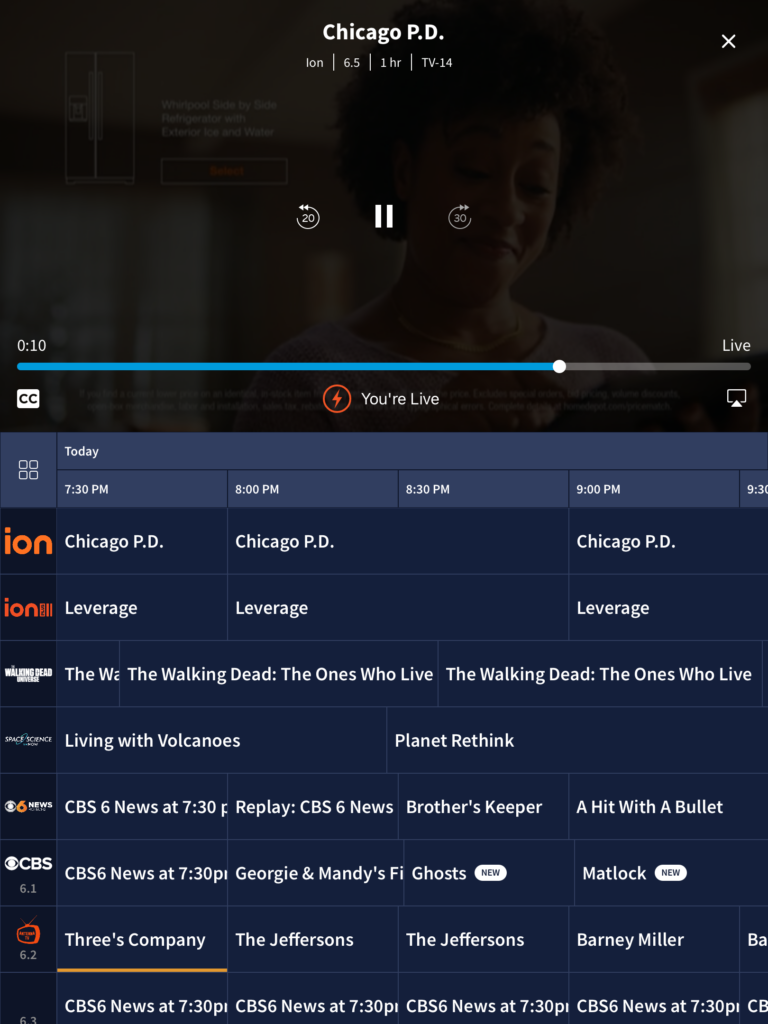
If you have a two tuner DVR this means that we can continue to record threes company and watch something else so let’s say we now want to watch Chicago PD. Tap on the title Chicago PD which will reveal a pop-up menu that we explored a little while ago, now tap on watch live.
the reason why we see the video along with the EPG is because I have my iPad portrait. If I don’t have the iPad turned portrait then I would not be able to see the EPG.
looking at this screen, in the video section we see the title of the series, which is Chicago PD, the station name which is ion, the channel number 6.5, length of the program and the rating. On the right side up hand corner we see an ex that will just close out of the video window, which will then return us back to the full screen of the EPG.
In the center of the video in the center of the video we see an error going toward the left side, which is 20 seconds back, the center icon changes, depending on if you pause or playing and we have a arrow pointing toward the right side, which has 30 seconds.
now we have 0:10, this is how much time has lapsed, we have a status bar that is similar to YouTube where you can use your finger to rewind and fast-forward. Below this we have the CC stands for close captioning in a center. We have your live which means that your live.
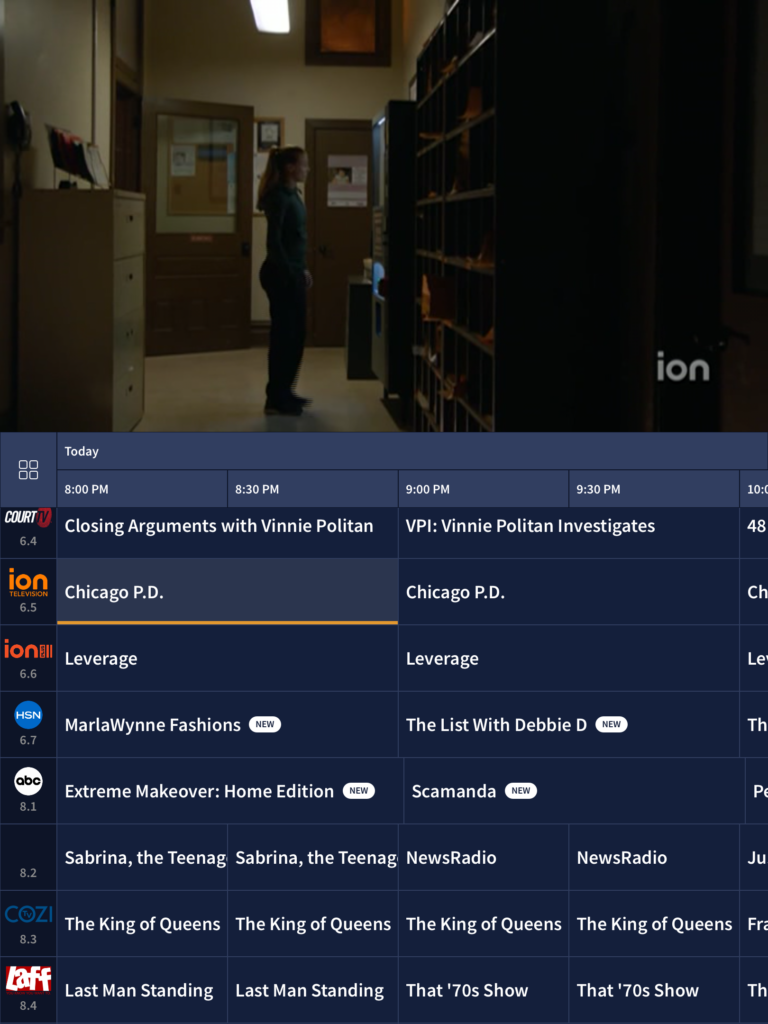
if you scroll through the EPG, you will notice that the channel that we are currently on which is ion is slightly a lighter blue. For this example let’s say that we want to also record this episode of Chicago PD. We’re gonna follow the same steps like we did before.
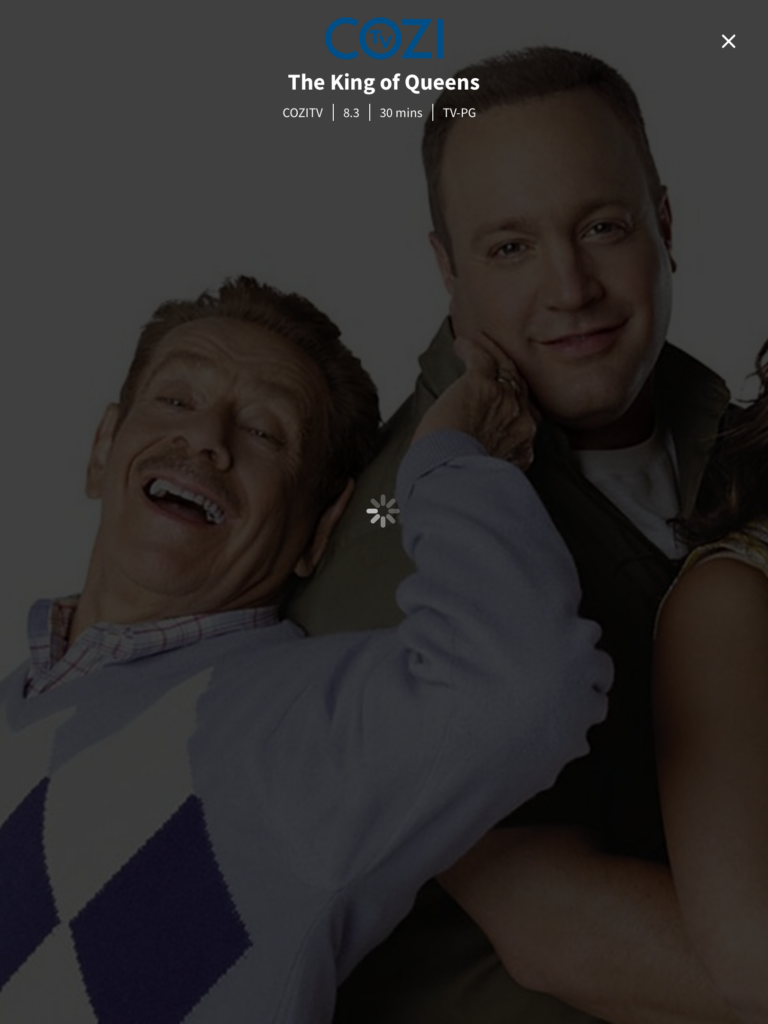
Now that we are currently recording two TV shows what happens if we attempt to change the channel? let’s say we now want to also watch the King of Queens, if you attempt to change the channel while two programs are currently recording at the same time when you tap on kings of queens it will give an indication that the channel is just searching, such as like this.
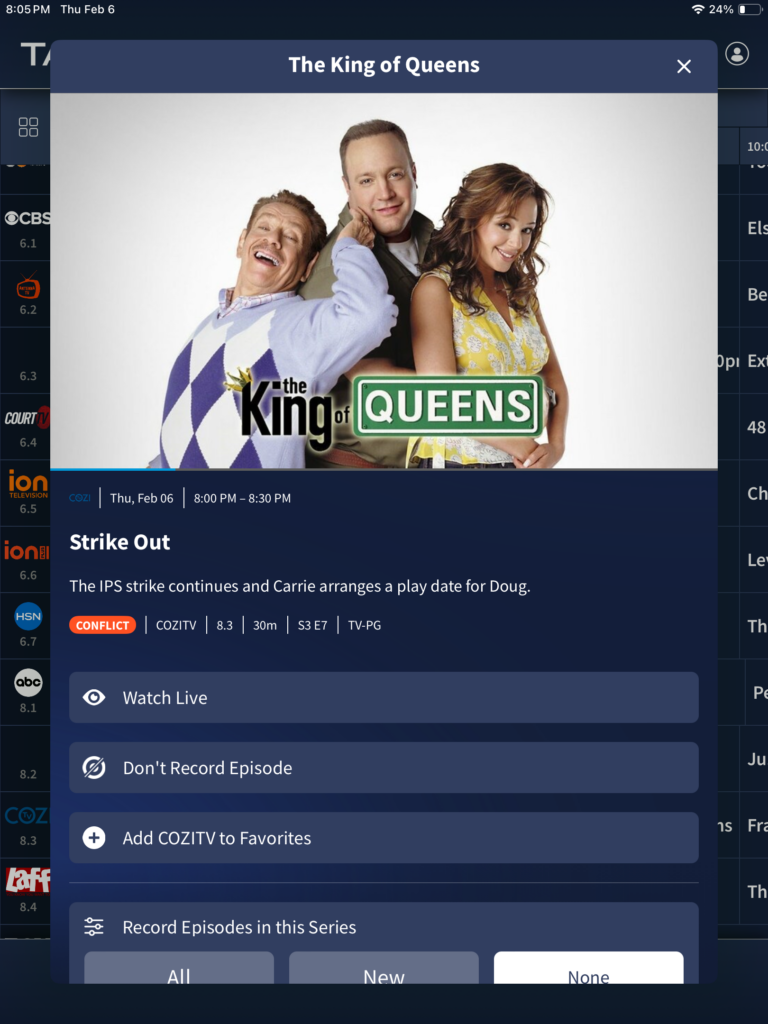
what happens if you try to record a third show? if you attempt to record a third show, you will see a red notification that says conflict and when you close out of this pop-up on the EPG you will see for this episode timeslot instead of it being yellow it will be red.
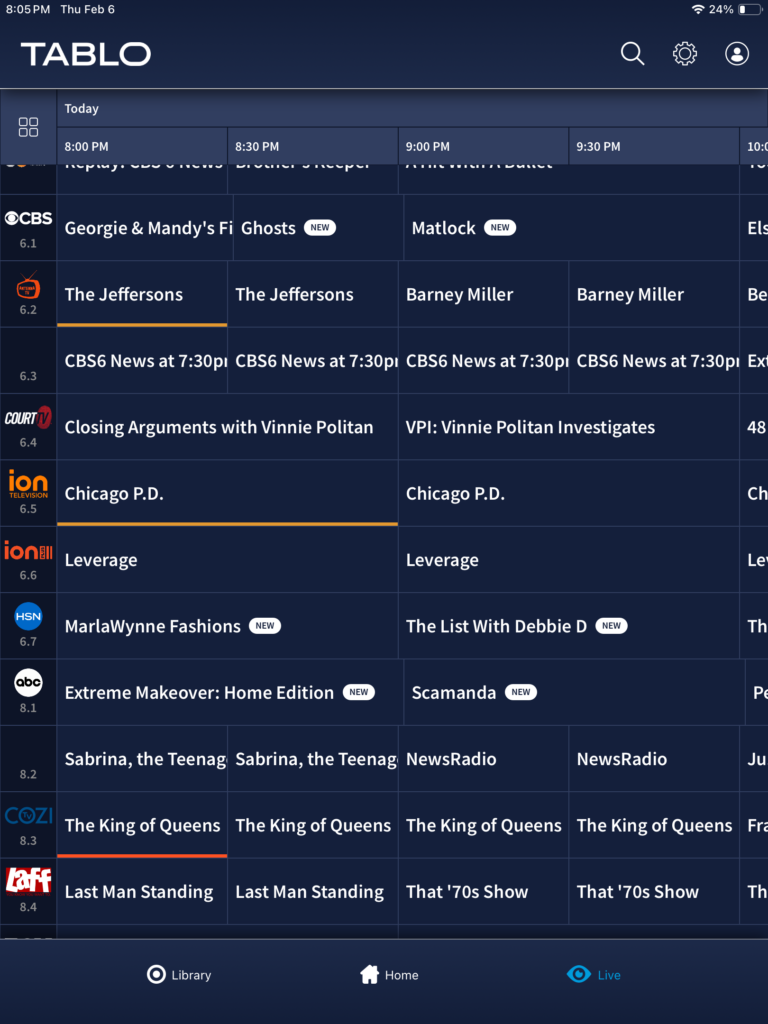
recording conflict we currently have Chicago PD, the Jeffersons currently recording so if we want to record the king of Queens or watch the channel that the king of Queens is on, we would need to stop one of the recordings. to stop a recording tap on the recording you wish to stop recording so for example we are going to use Chicago PD for example, tap on the TV show title, then tap on don’t record episode. Now we will be able to change the channel to the king of Queens and the Jeffersons will continue to record.
Now that we stop Chicago PD from recording, Chicago’s PD timeslot is no longer yellow, that’s indicates that the recording has stopped, for the episode of the King of Queens that was red has turned from red to yellow, which now this indicates the show is now currently recording.
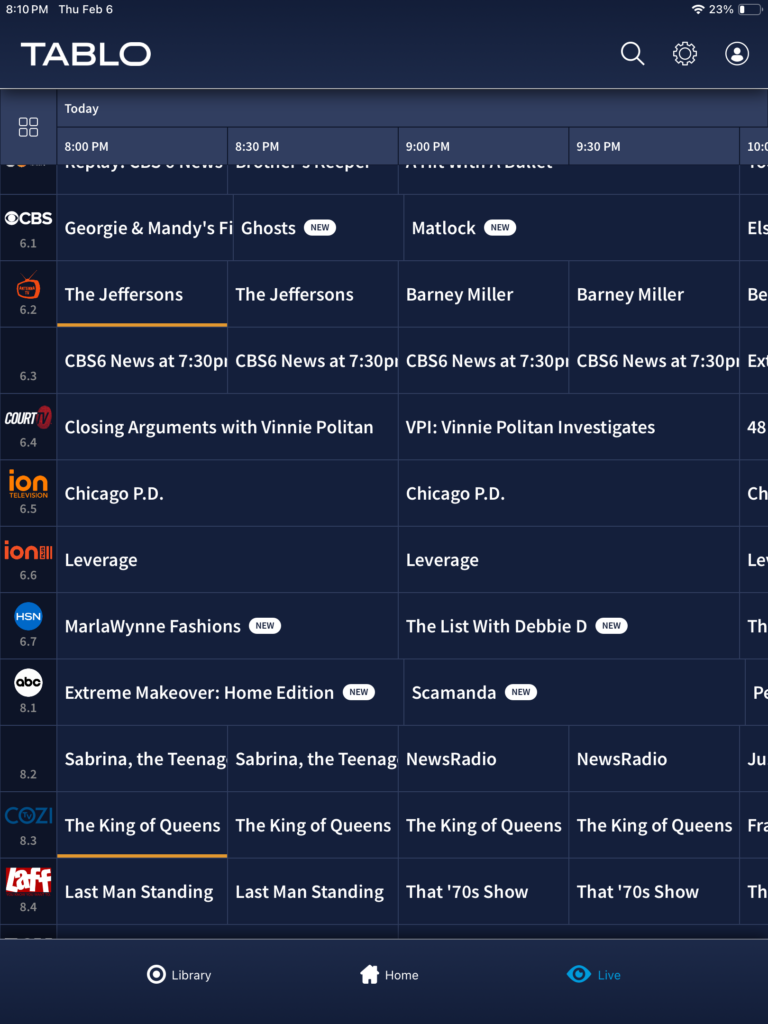
looking at the screenshot above, we see the TV show title “extreme makeover home edition and we see An oval with the words NEW this indicates that the show is new.
Let’s say that your TV shows have finished recording to watch what you recorded, tap on library