Helium Mobile: A Walk-through of the set of process.
admin / March 20, 2026
PRIVACY NOTICE: You will be required to take a picture of your government issued photo ID of the front and back plus taking a selfie, they say this is to protect your account.
If you’re looking for a free Mobile carrier may want to try Helium Mobile as they say the service is free. To get started head on over to https://heliummobile.com, then tap on “Plans” from the navigation bar, then you should see a button that says “see our plans”. Now you should see three different plans, which is zero, air, and infinity.
Tap on each of the different plants to see which one is the right one for you, zero is truly free, air and Infinity will cost money, but they offer more.
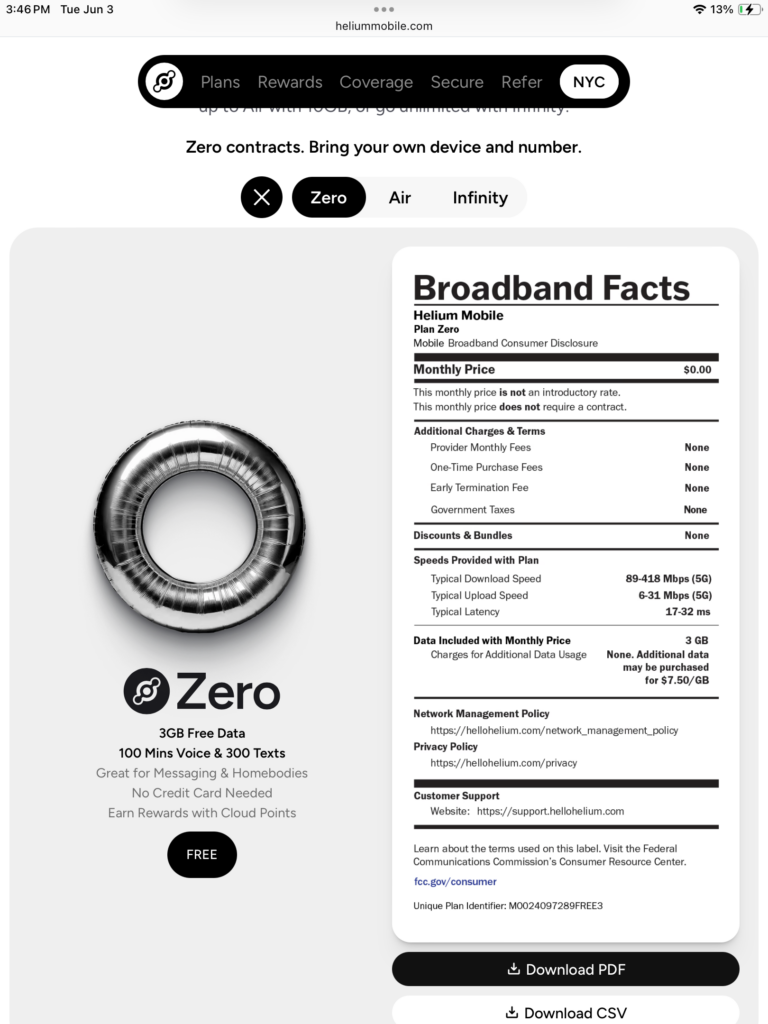
For the whole entire duration of this article, we will only be using the free plan. Tap on “Zero”, then tap on “Free”. (Please see the image posted below.)
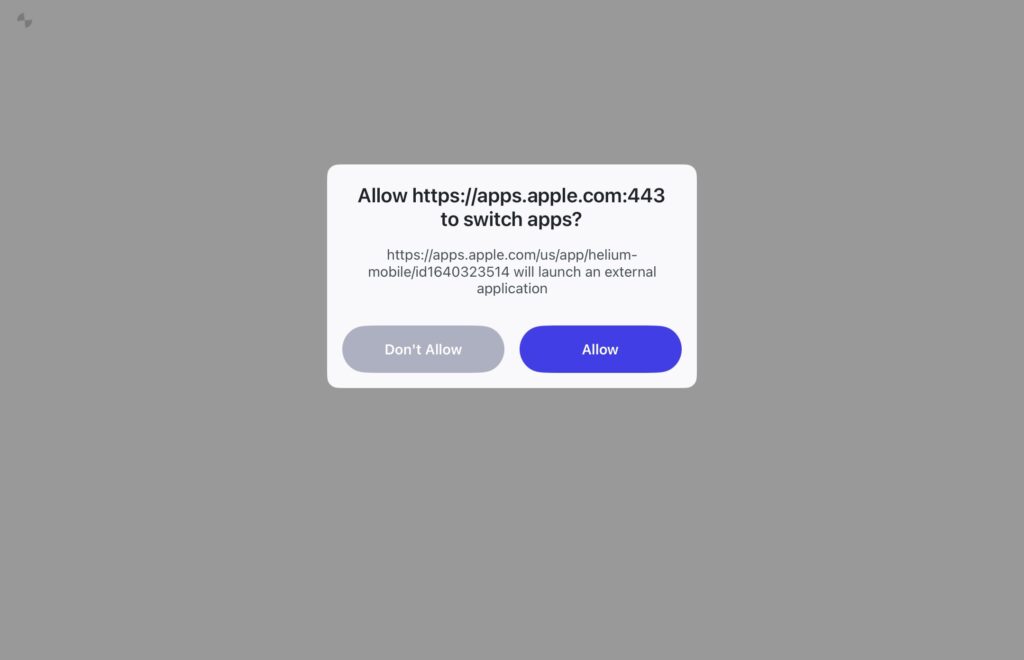
A new window or pop up box may ask you to open up the App Store, If it does, please allow this to happen by tapping on “Allow”. (Please refer to the image posted below.)
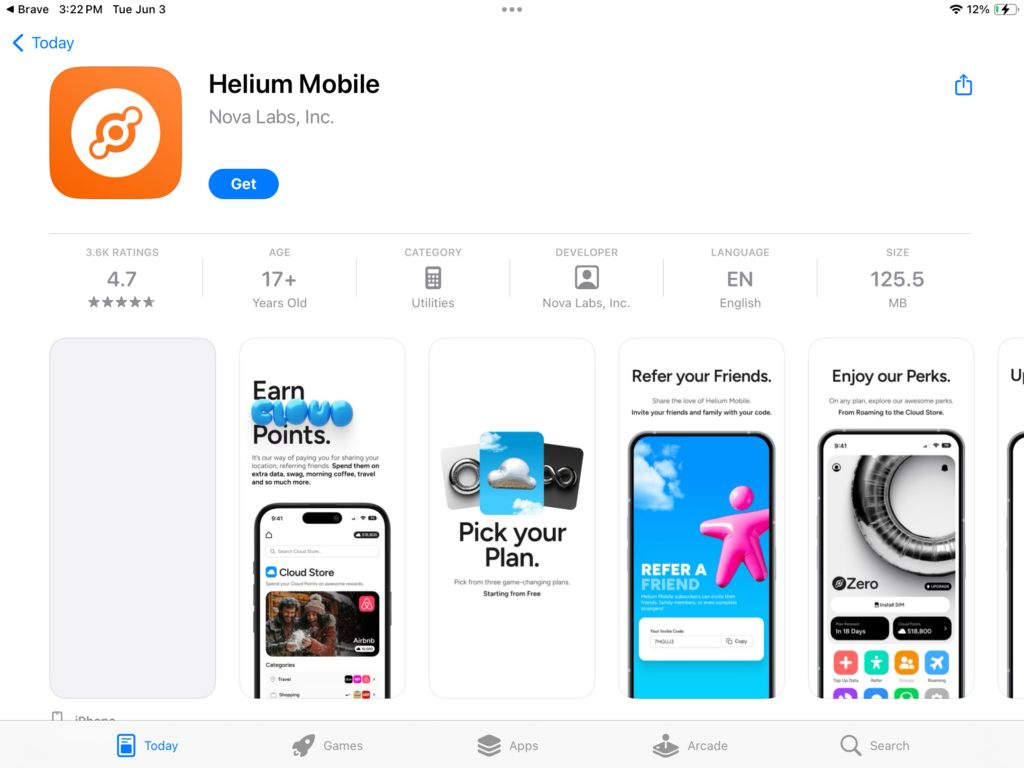
In the screenshot posted below you will now see that you have been taken to the app on the App Store, that you’ll need to download, to download Helium Mobile, please tap on “Get”. Once you tap on “Get” you may be prompted to enter your password in order for the app to start downloading. If so, please enter your password once this is entered and you tap on sign in , the downloading should start. Please allow a want two minutes for the downloading to complete of course this will depend on your current Internet connection.
After the installation has successfully completed, you will now be able to open the app, tap on “OPEN”, once the app opens, you’ll have a series of pop-ups such as the one posted below, this is asking if you will allow the app to be able to track your activities. (For this I allowed the Tracking by tapping on allow. Note: you always have the option to revoke access via the settings on your device.)
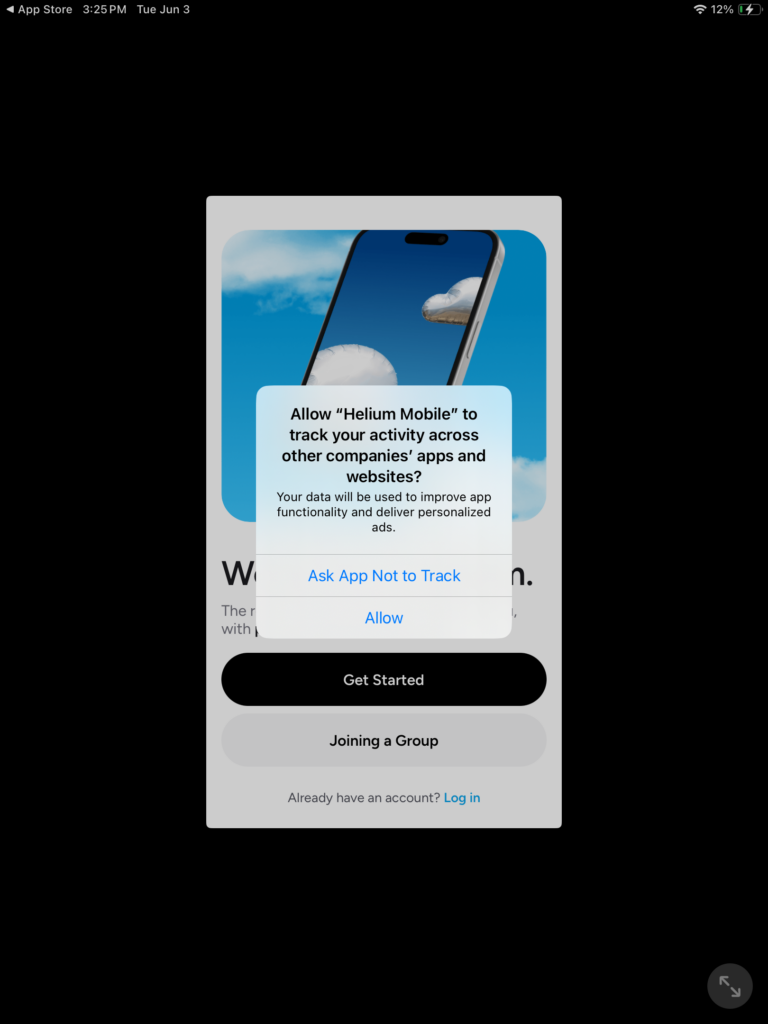
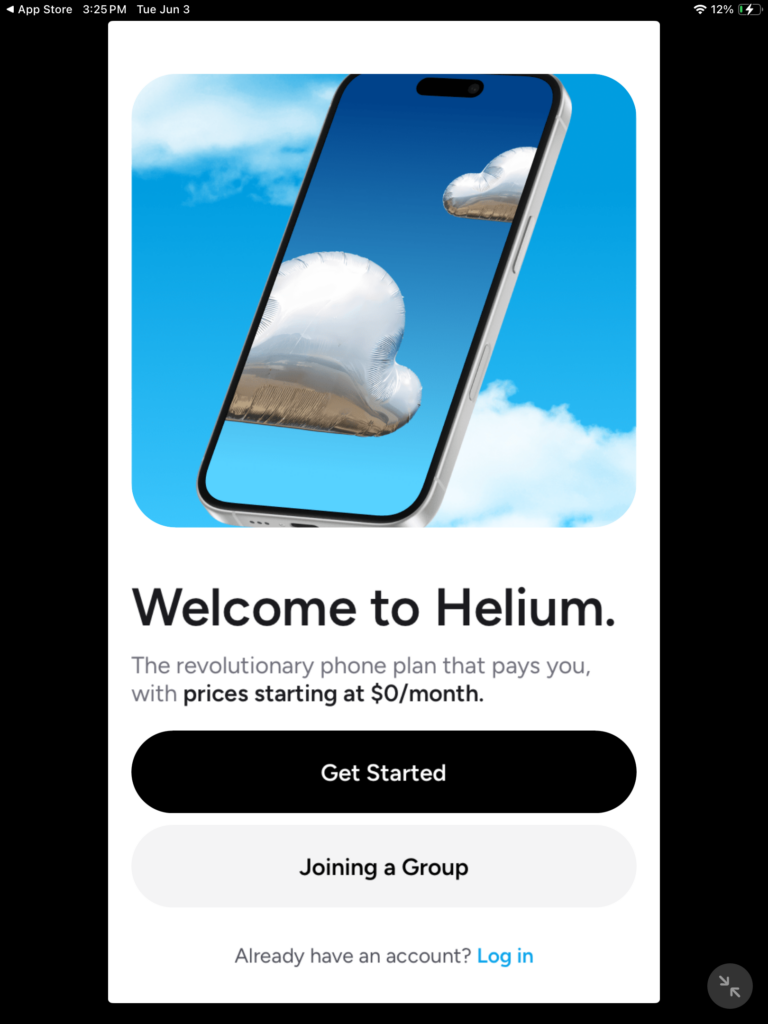
now that the pop-up window has closed, tap on Get started”, as seen in the photo below..
The next series of screenshots that are posted below is just from information about their Service, The only way to advance through this is you have to tap on tell me more, there are three slides. This is slide 1 of 3)
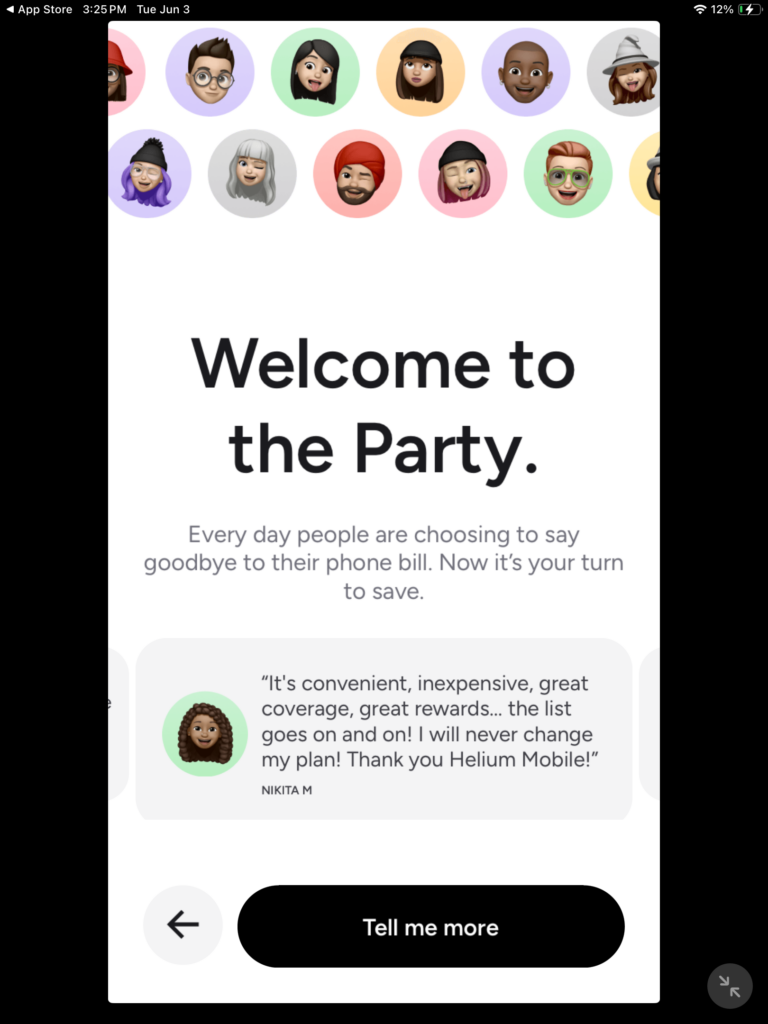
Slide 2 of 3 (see below)

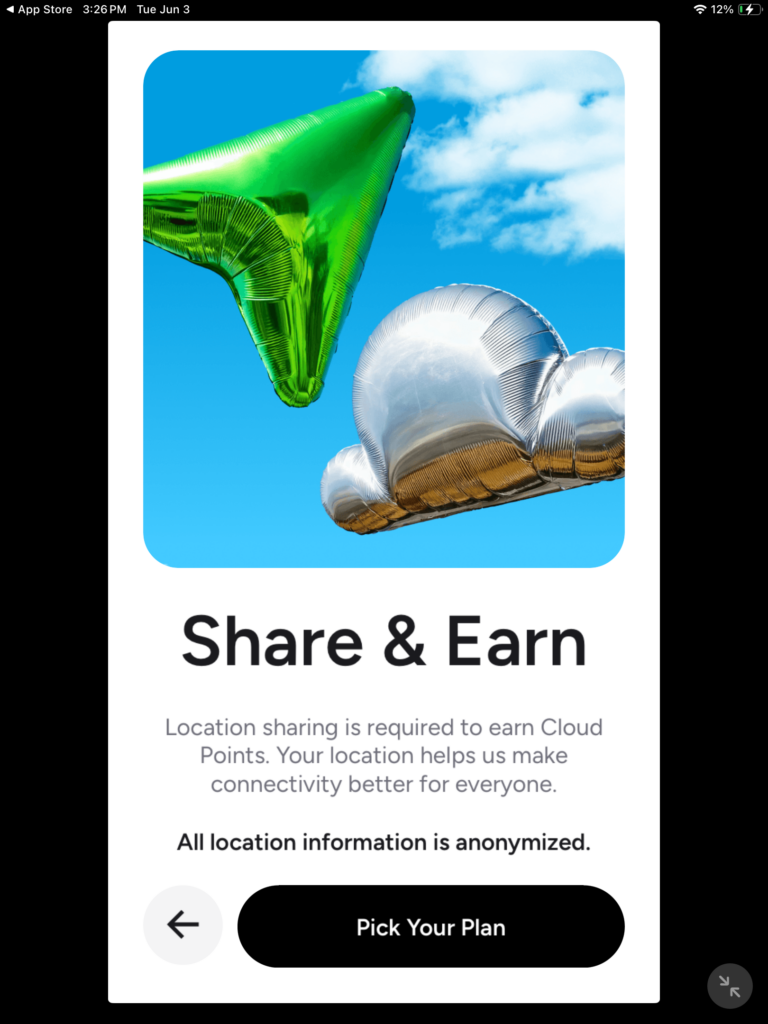
Slide 3 of 3 (see below)
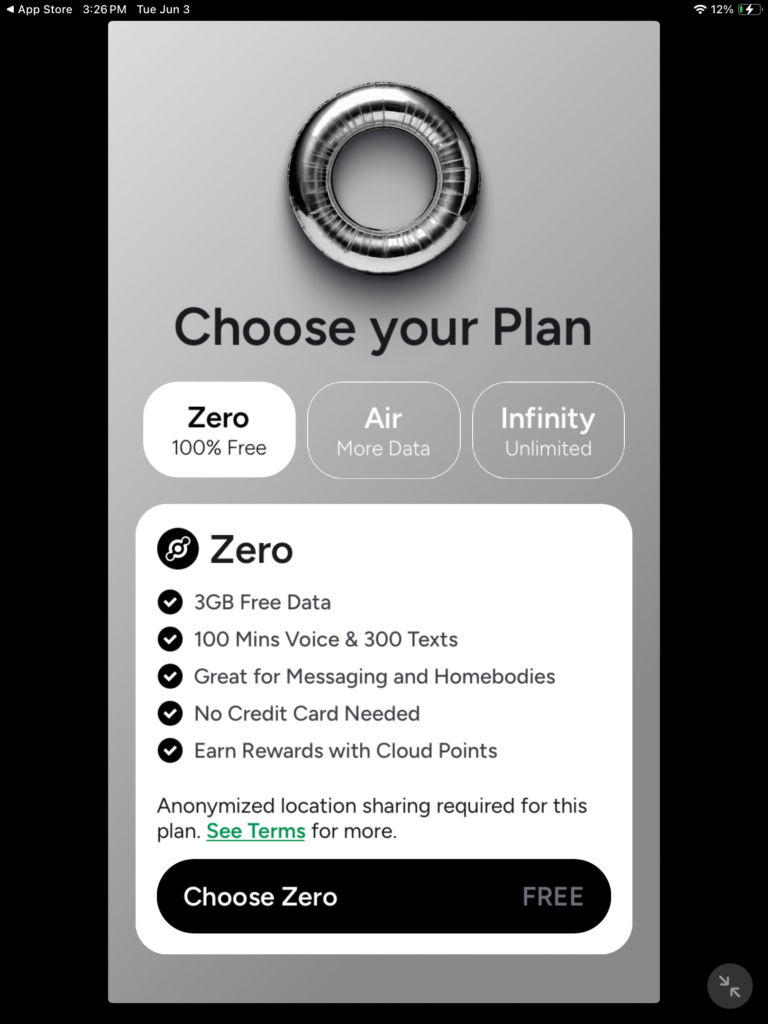
Now you have a choice to choose from the different packages zero (100% free), Air, and infinity.
Now you will have an option on how you would like to sign up, you can choose to sign up with Apple or Google or you can opt to use your Email address. If you already have an existing account, located at the very bottom, you’ll see a sign in link. I opted to sign up using my email address as opposed to using Apple or Google.
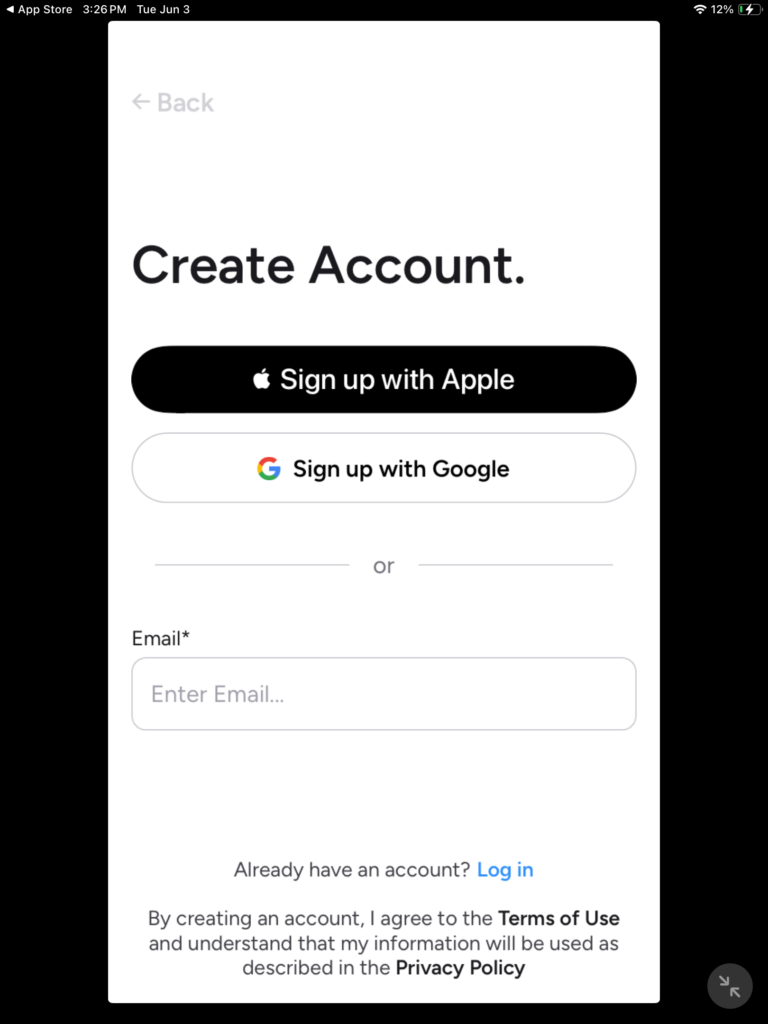
You will need to provide a valid email address and a password and you will need to verify the password by re-entering it, then click on “ verify email”.
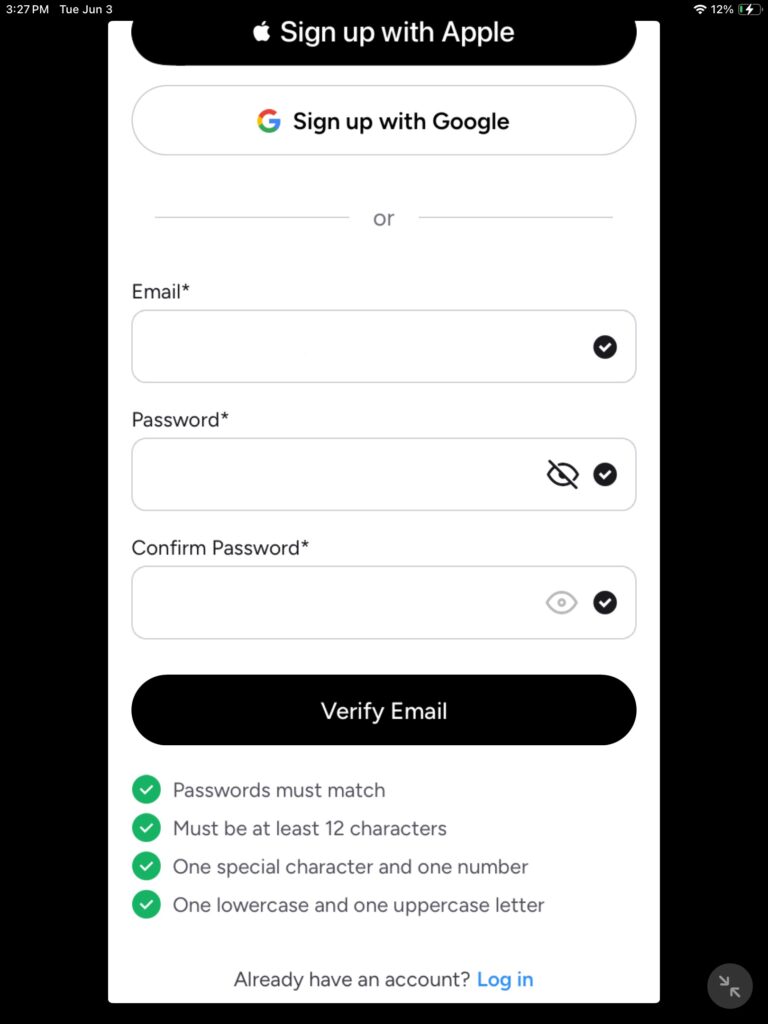
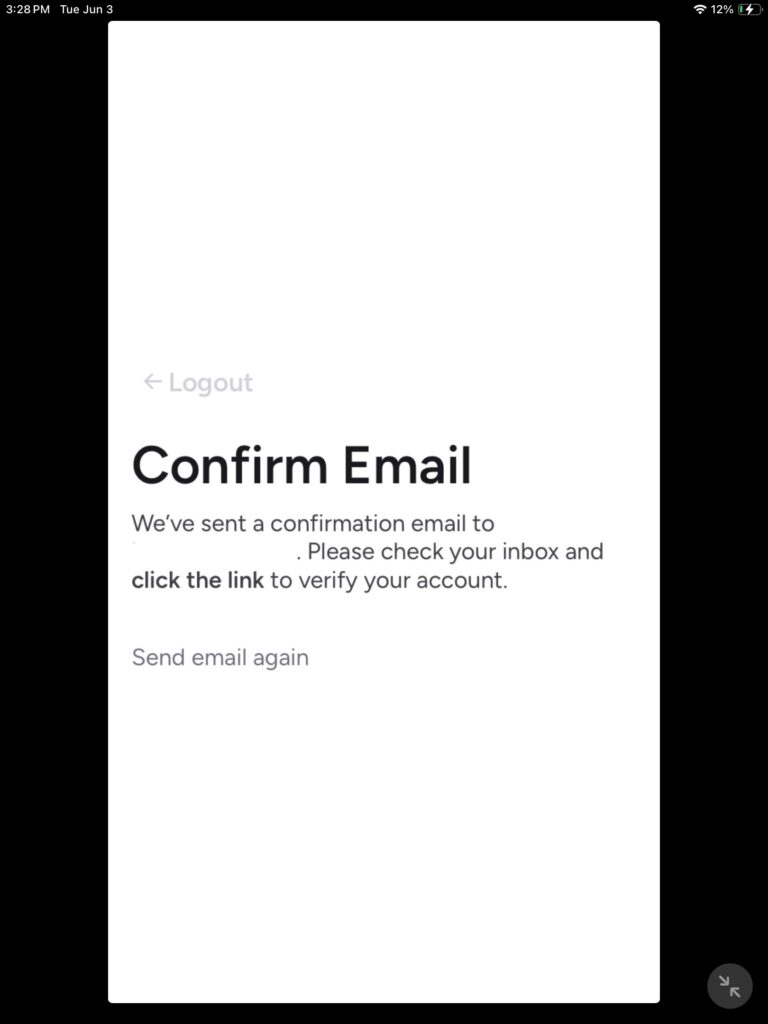
consider this screen to act as a confirmation that your account has been created, but not yet activated as you will be required to click on a link.
once you click on the activation email you’ll be taking back to the app in which the app will now say verifying your email.
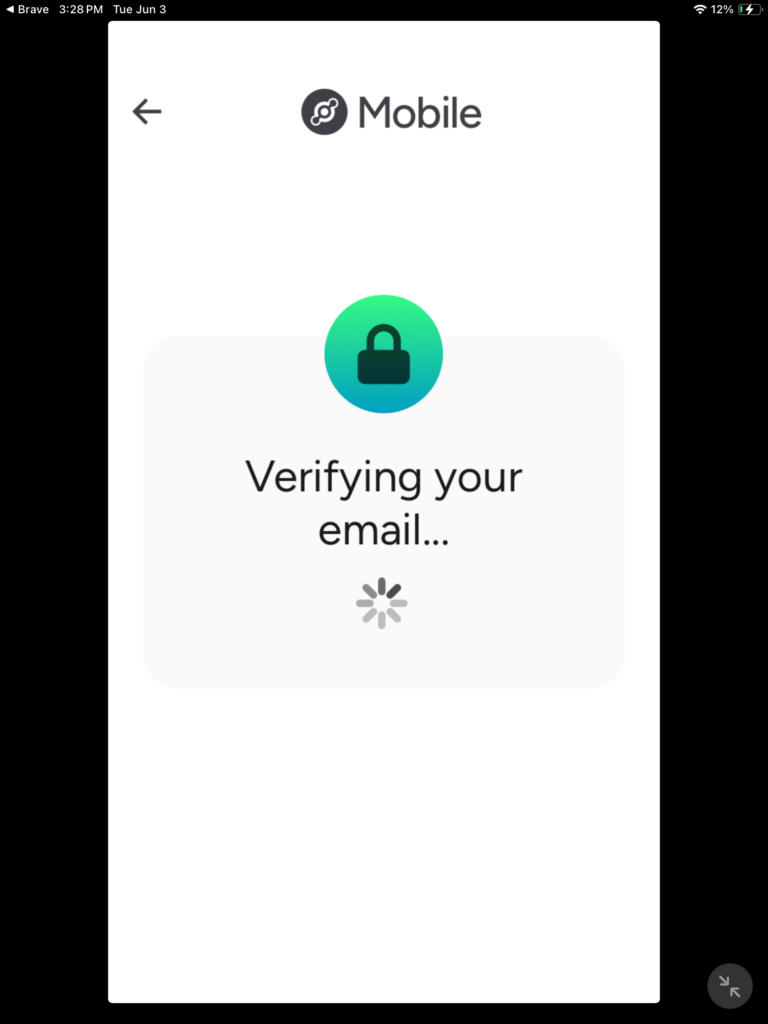
You may see the spinning circle for a brief moment.

IMPORTANT! During the registration process, it is IMPORTANT to use accurate and truthful information such as your name, mailing address, etc as this will be used for verification. Failure to use accurate and truthful information may cause the verification to fail. It is not clear of how many attempts you may try at verifying before you may not be able to verify for certain amount of time or you may have to contact customer service for them to manually verify your identity.
Full name (Please ensure your full name matches the name on your valid government ID as it will be used to verify your identity.)
Mailing address
You will need to agree to the terms and privacy policy
You will need to agree to allow Helium Mobile to send you communication emails.
Tap on the black button to continue .
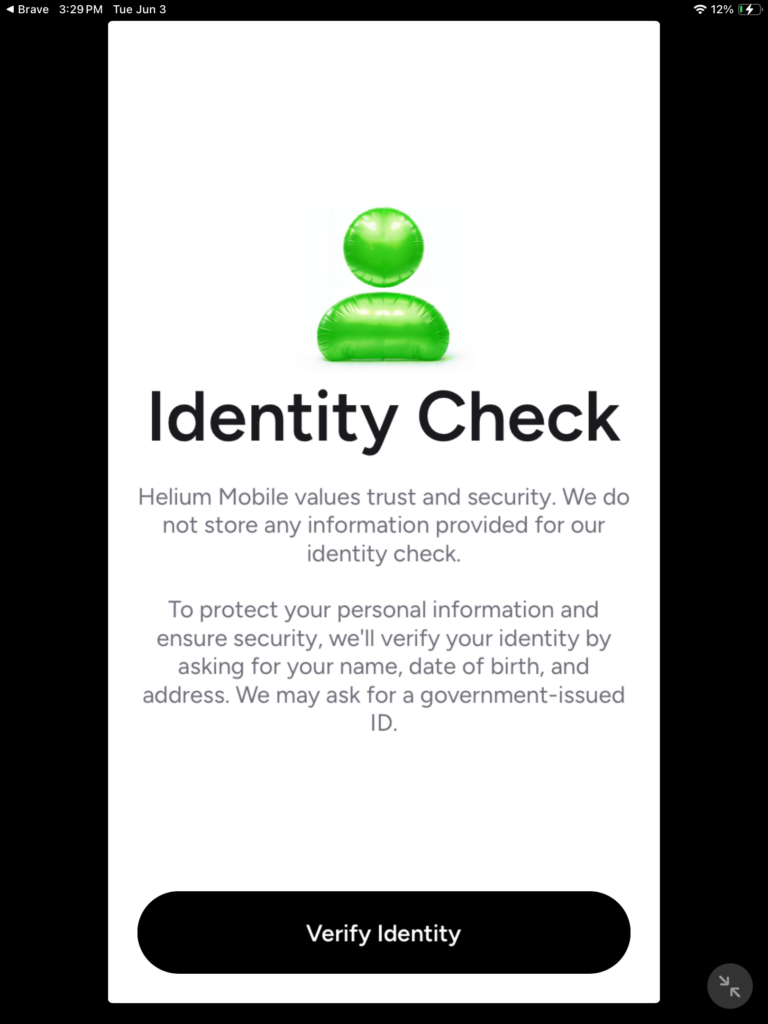
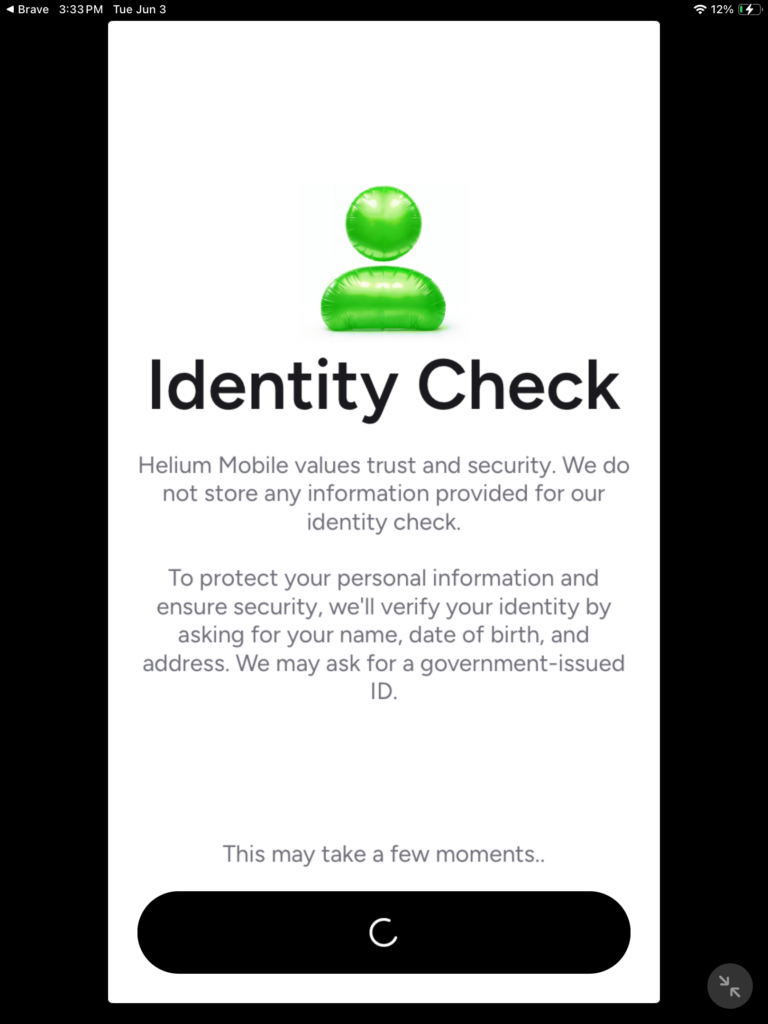
As mentioned earlier that you should have provided truthful and accurate information that matches what is on your government issued ID, in a screenshot below, they say “Helium Mobile values trust and security. We do not store any information provided for our identity check.
To protect your personal information and ensure security, we’ll verify your identity by asking for your name, date of birth, and address. We may ask for a government-issued ID.
When you are ready tap on the button that says “ verifying identity”
Loading …

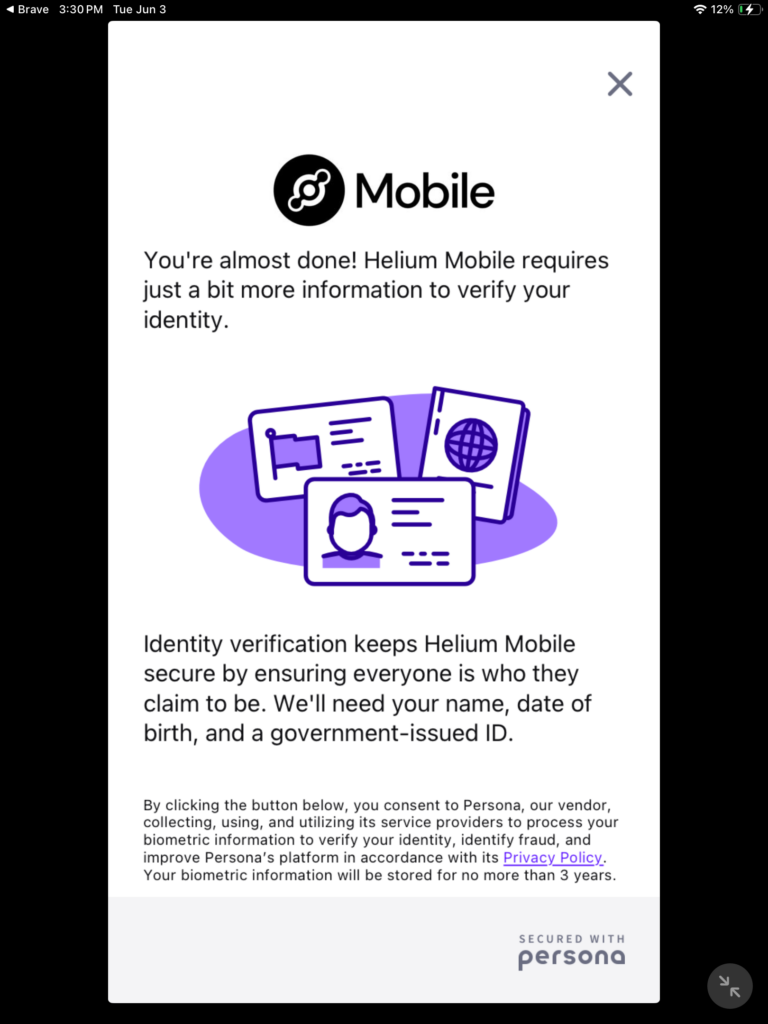
Please read this carefully. They will ask for the following: Name, date of birth, and government photo ID.
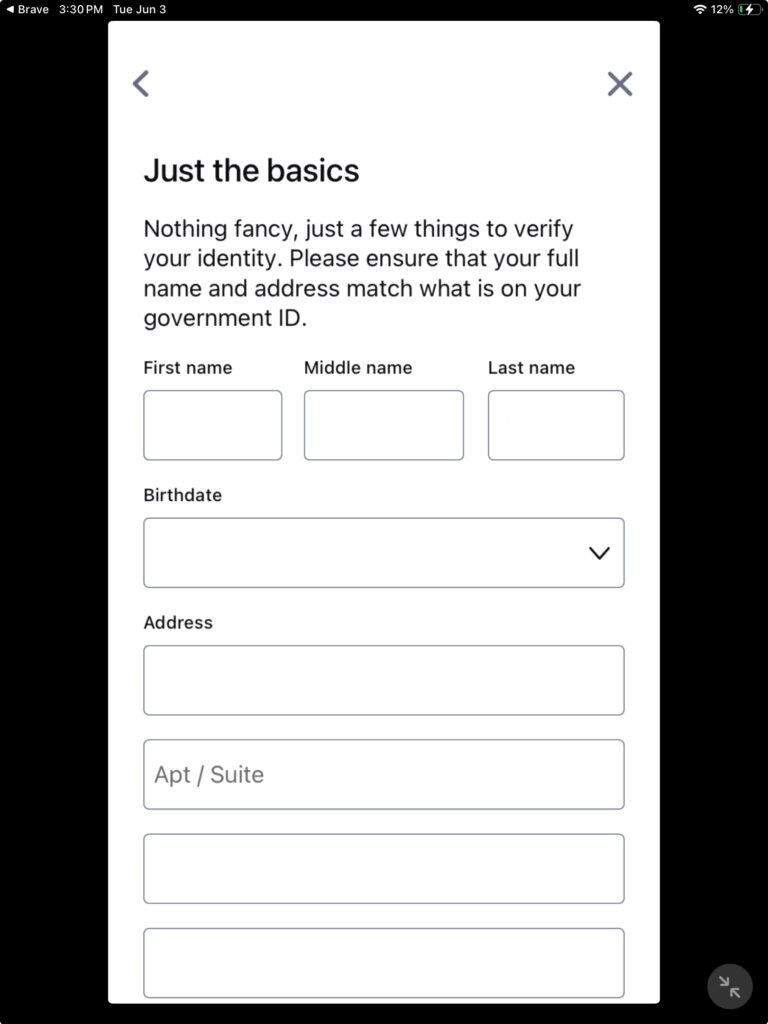
You’ll need to provide first name, middle (if applicable), last name, date of birth, address.
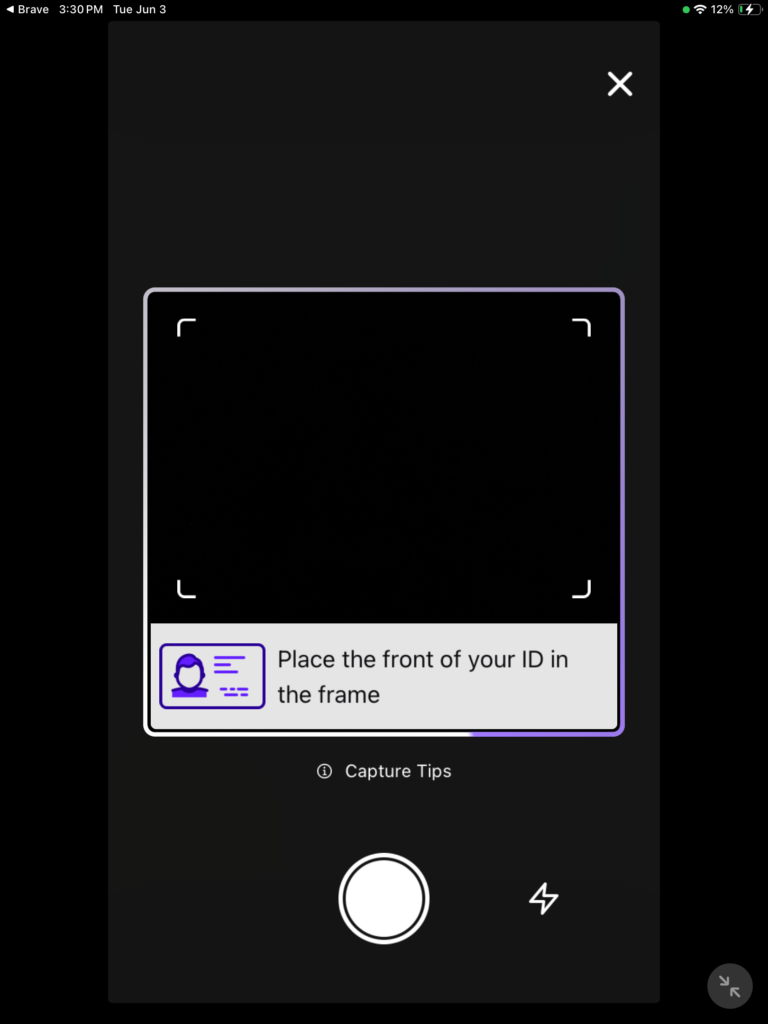
Place the front of your ID within the lines, then tap on the big white circle to snap that wonderful ID. You will be asked if you would like to use this or retake it.
Now they are going to ask you to take a picture of the back of your ID as well.
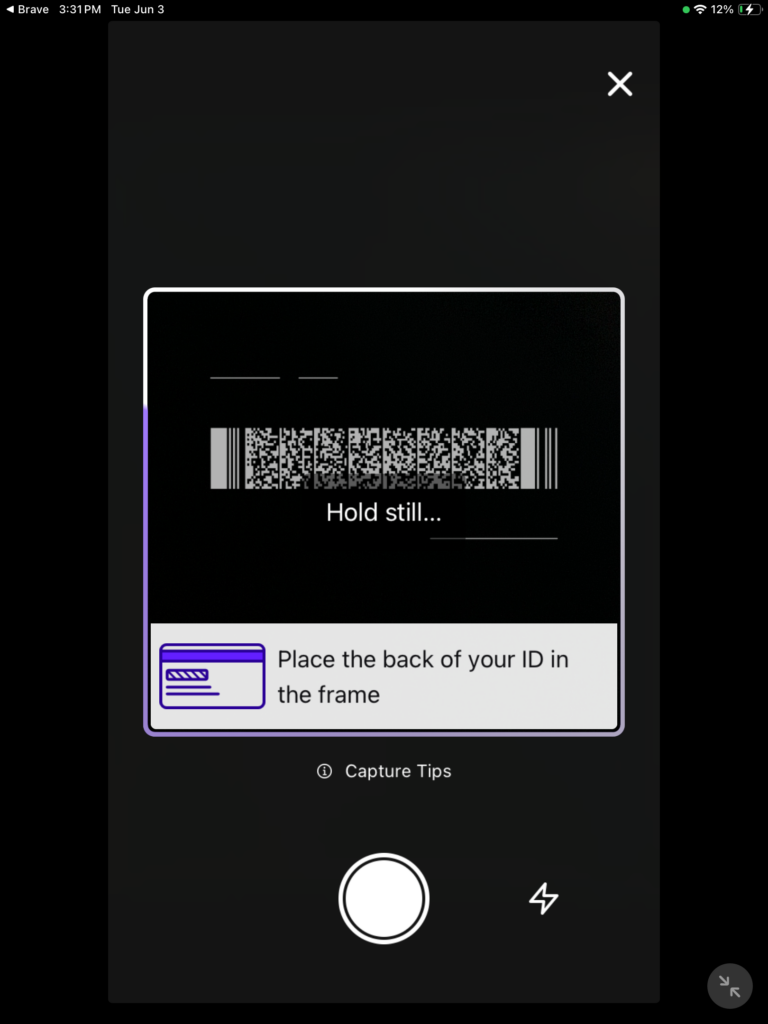
Processing… please wait…
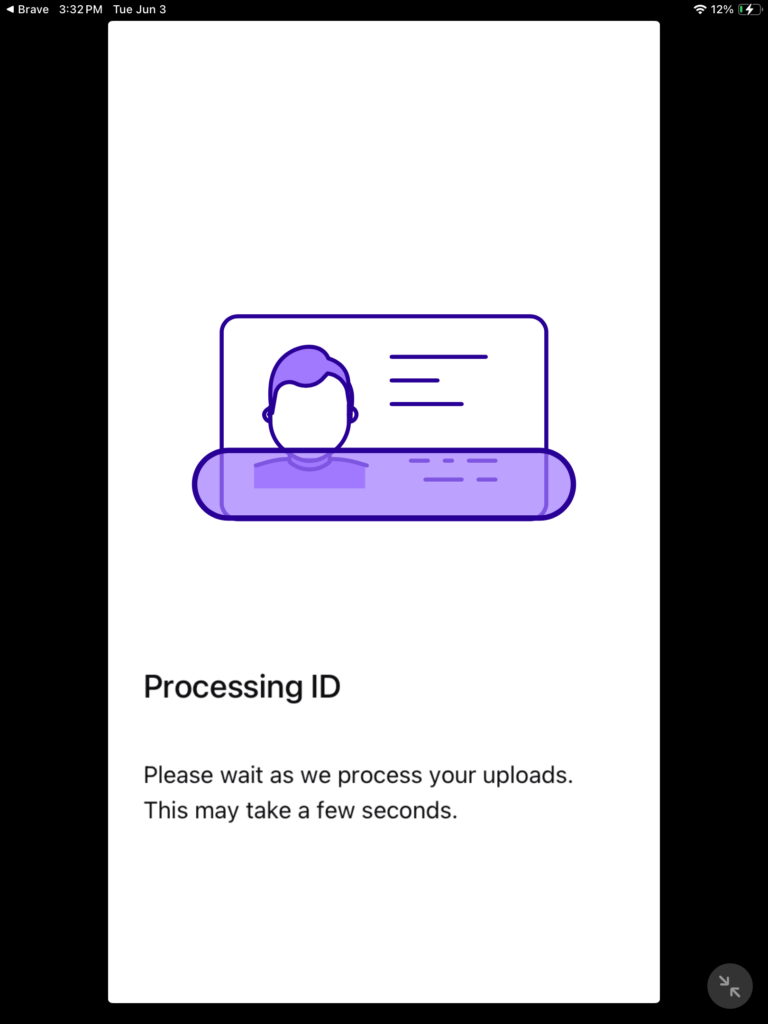
If you receive this error, just retake the photos perhaps maybe in a more well lit area and try to keep the camera as still as possible so the photos are as clear as possible.
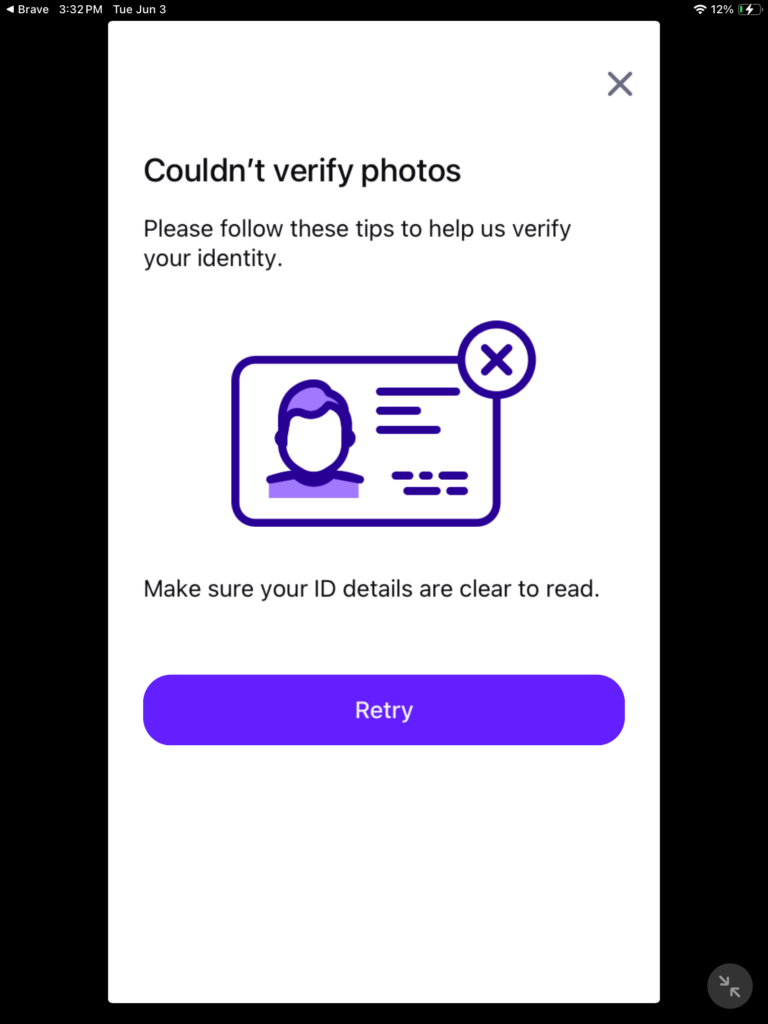
If the system accepted the front and back of your government issued photo ID, on the next step, we will be taking a selfie. Now press “Get Started”.
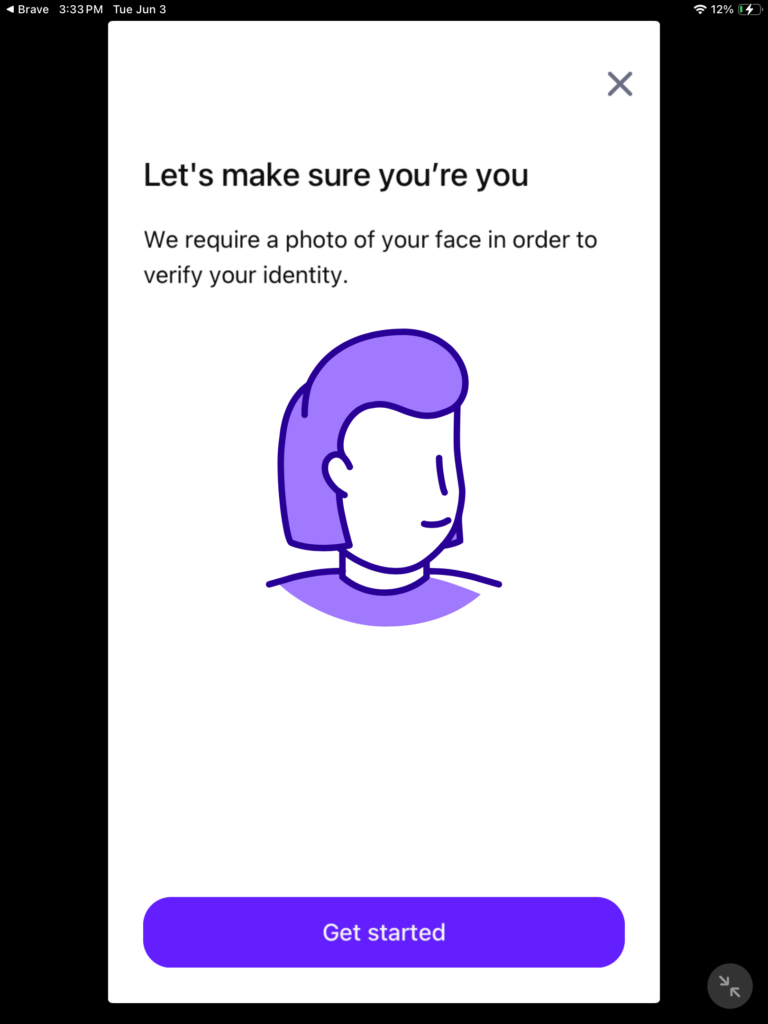
On the screen, not show here, but you will use your front camera and you wanna make sure that you are in the center of a circle, once you are in the center of the circle take the selfie and use the picture, then you should see the system is going to process this. When you take a selfie, you want to make sure that the background is rather kind of plain and not others are in the background as this may cause The selfie verification part to fail, and you will need to retake the selfie again.
CONGRATULATIONS! You have completed the verification process, kind of hidden but there you can tap on “Not now” to continue.

Nope, this isn’t an oh no, or what the … ! Just allow the app to finish processing. Once the app has finished processing the verification, the automatically go to the next screen.
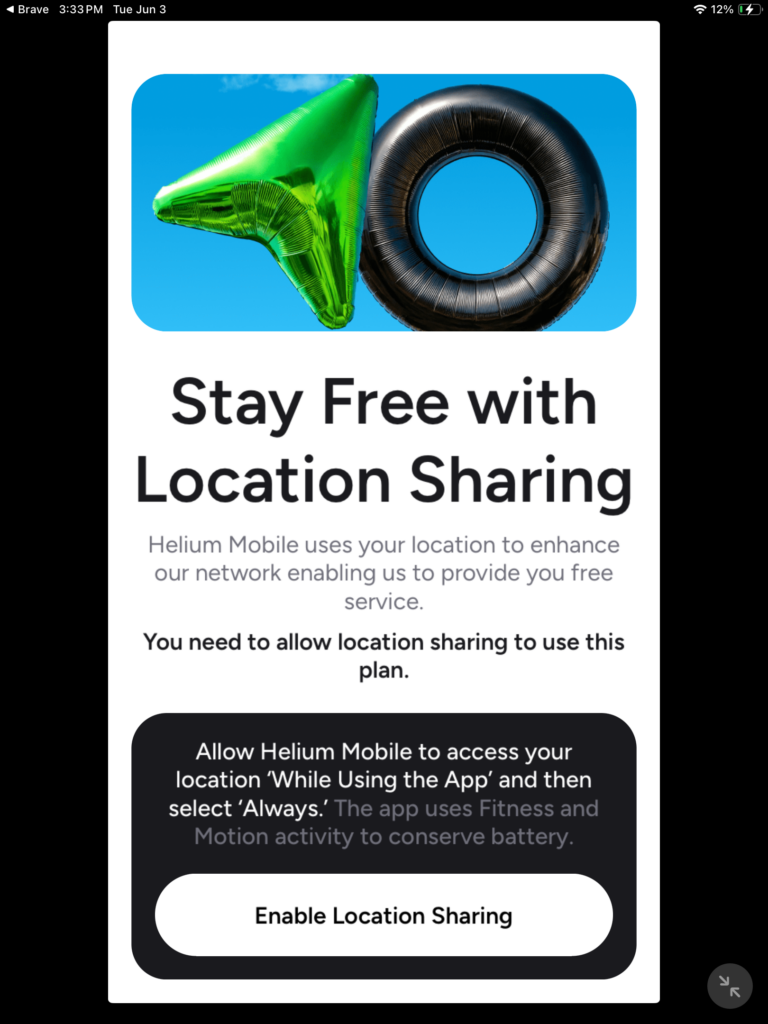
Access to location: Tap on “enable location sharing”. Not sure why they first tell you to select “while using the app”, then change the permission to “always”.
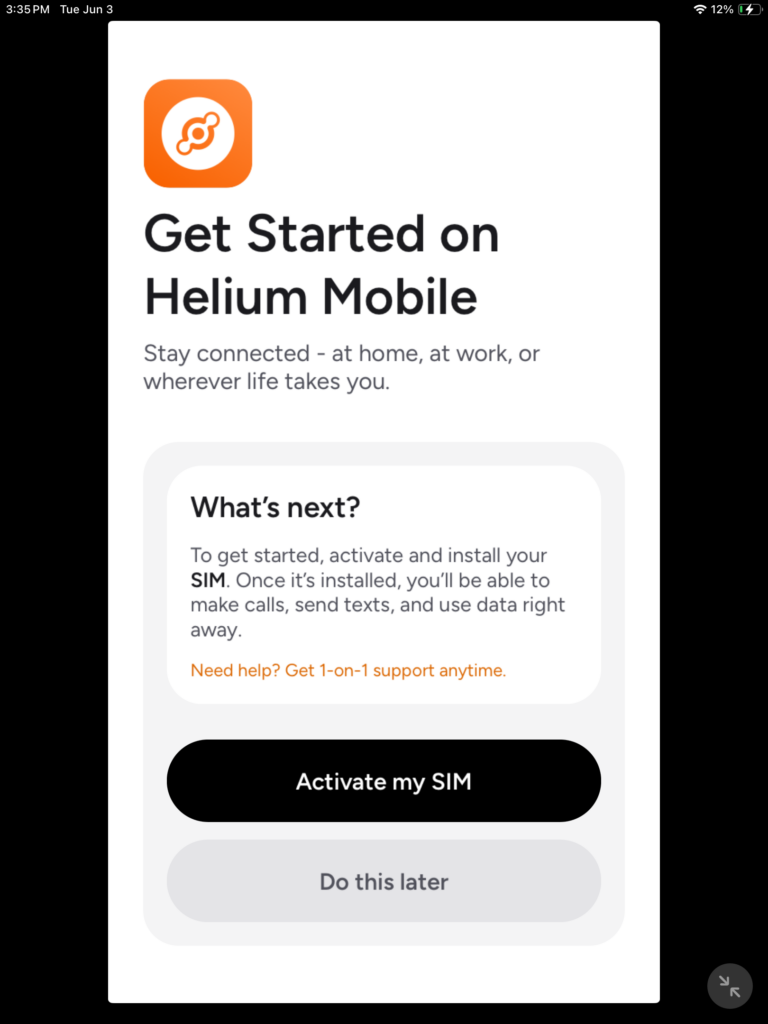
Since this is our first time we need to request a Sim card, tap on “ activate my SIM”
If you prefer to use an eSIM card, you can choose this Method, however I decided to op for receiving a physical Sim card. If you choose to use a physical SIM card, tap on “Order Sim card”.
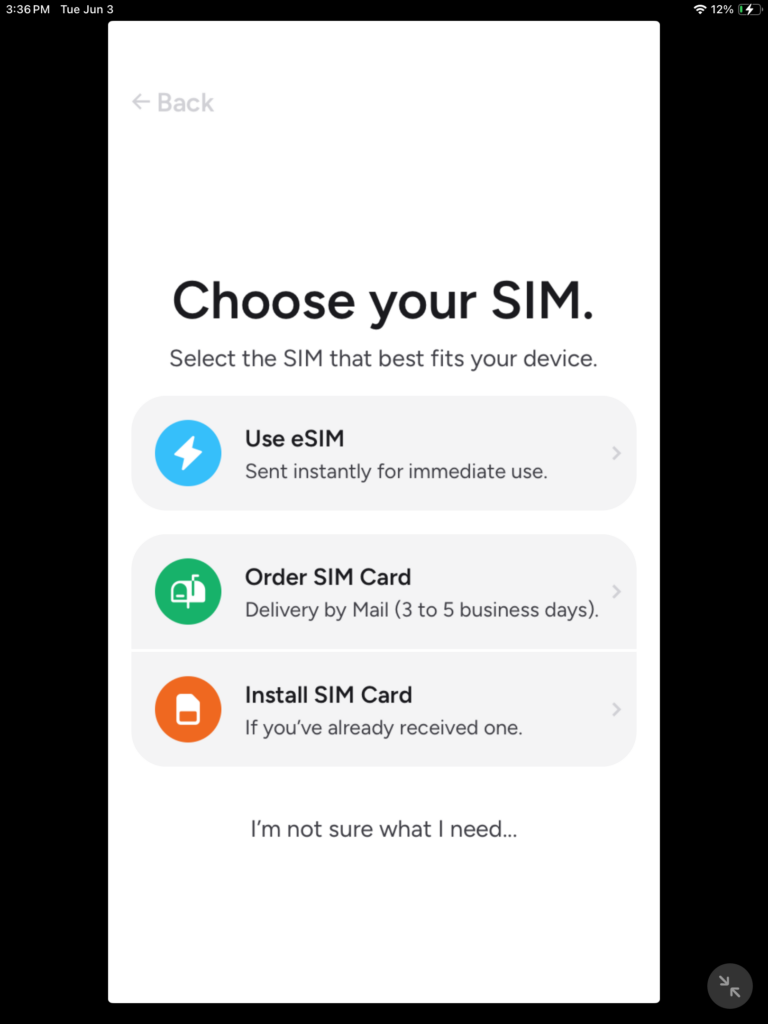
You will need to confirm the shipping address of where the Sim card should be shipped to, verify that the address is correct once you have verify that the address is correct, tap on “confirm order”.
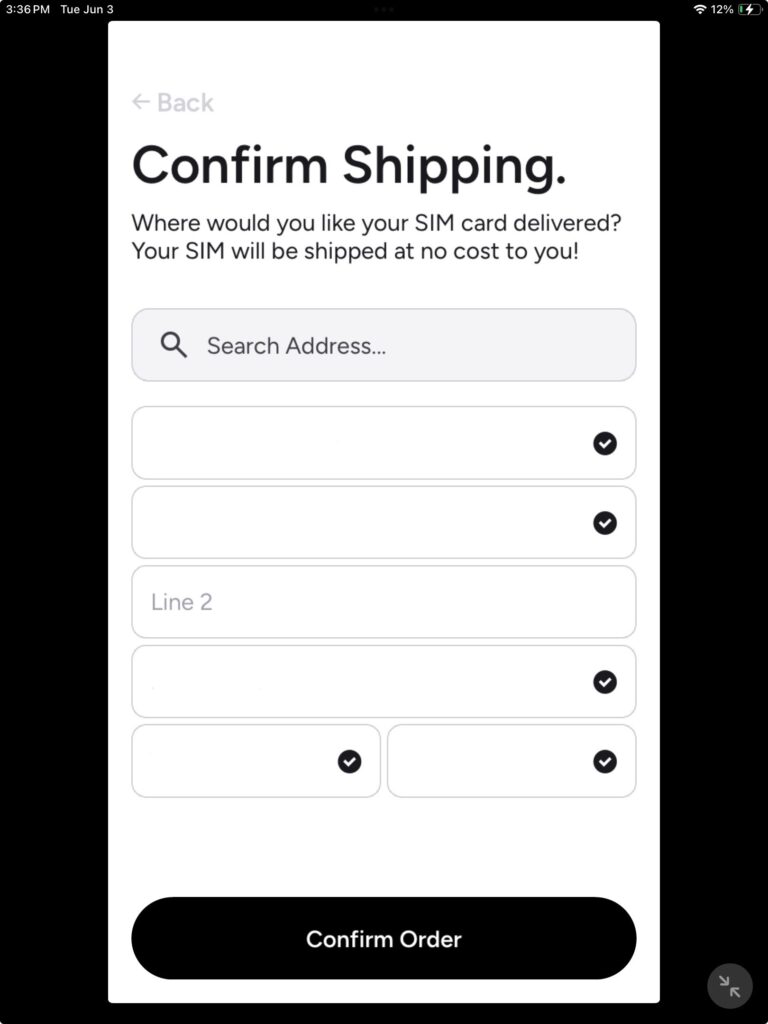
if you live in a rather new residential area, you may run into an issue where they say they cannot confirm the address I had to click on confirm order three times in order for to successfully go through. One successfully goes through you will receive on the next screen a confirmation as seen below.
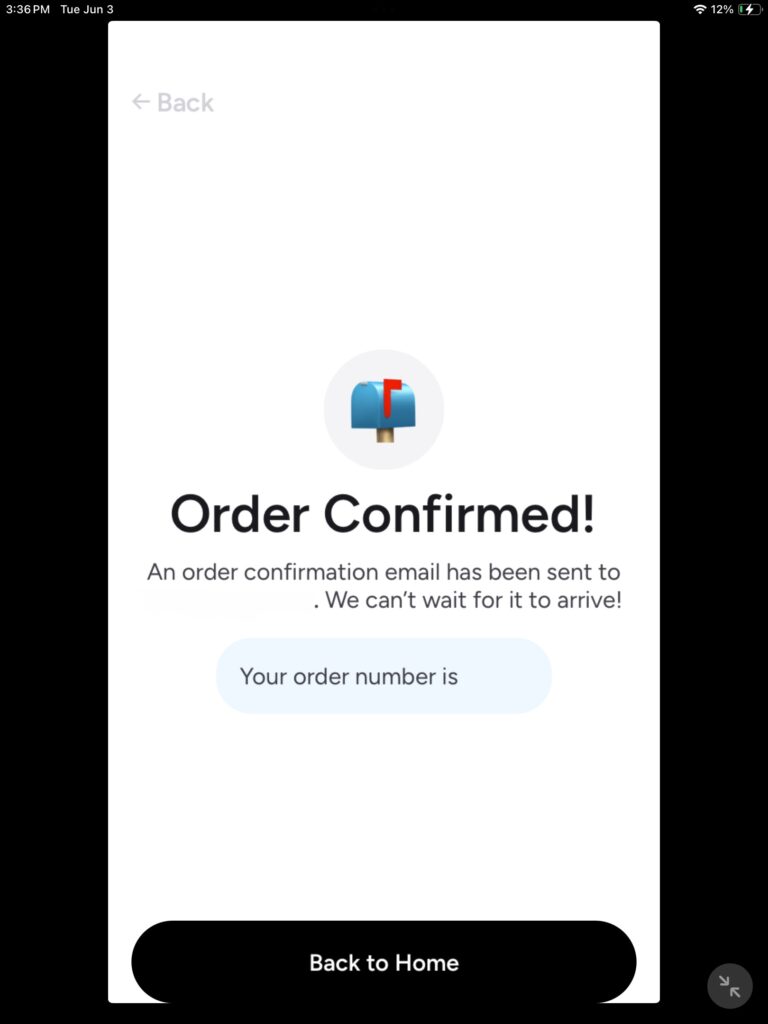
Now that you have received your order, confirmation screen, take note of your order number, Once you have Jada down your order number you can tap on “back to home”.
Congratulations you have now successfully completed the installation, verification, setup and order for the SIM card. This is the main screen when you open the app.
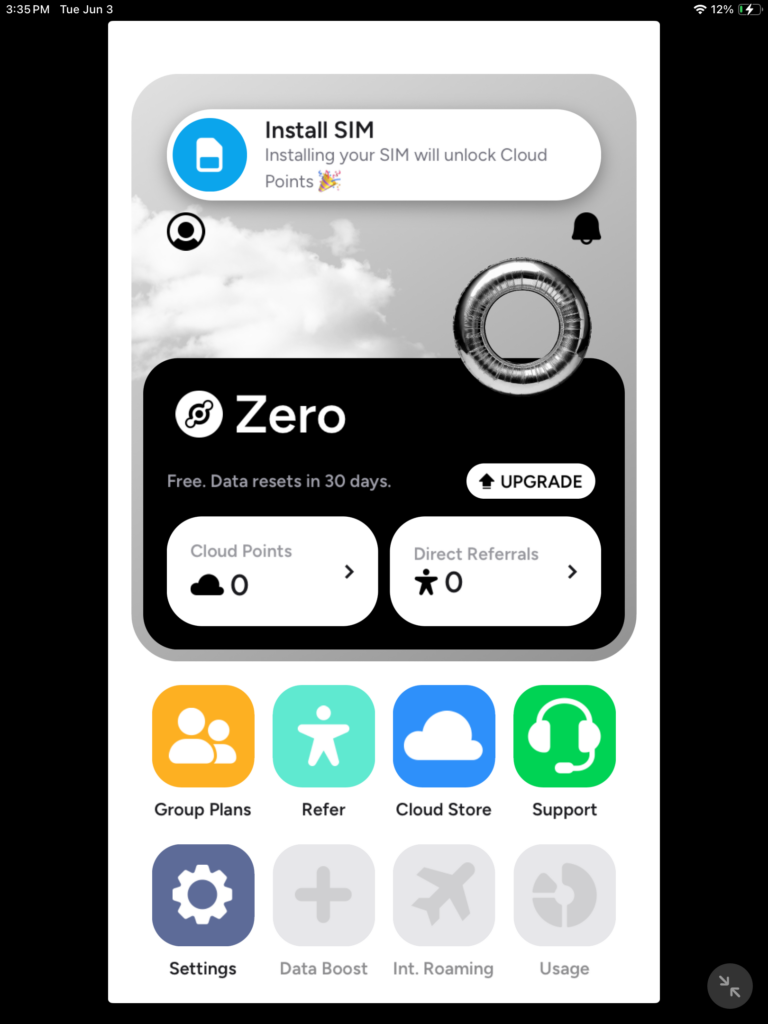
After you place your order for your SIM card, it will usually arrive within a few days by USPS and you will receive a confirmation email and tracking number.
When your SIM card arrives in the mail, the SIM card kit is no bigger than a credit card. Carefully open the SIM card kit and you will see a card that is plastic that is about the size of a credit card, and you will see a three in one, large, medium and small. You will need to determine size you need.
You can put the SIM card into your phone, you will need to make sure your phone is not locked, meaning if your cell phone was used on Verizon Wireless for example, you may need to contact them to give you a unlock code to unlock the phone to then use on there network. They use T-Mobile’s network. I would strongly recommend not using any website that says they can unlock your phone for any fee, as the cell phone company will unlock it if it is not reported stolen, not fully paid for for free.
Login into Helium Mobile App with your login credentials if you have logged out, you will the start the SIM card activation process. When you open the app or login you will be taken to this screen, top on “Activate my SIM”.
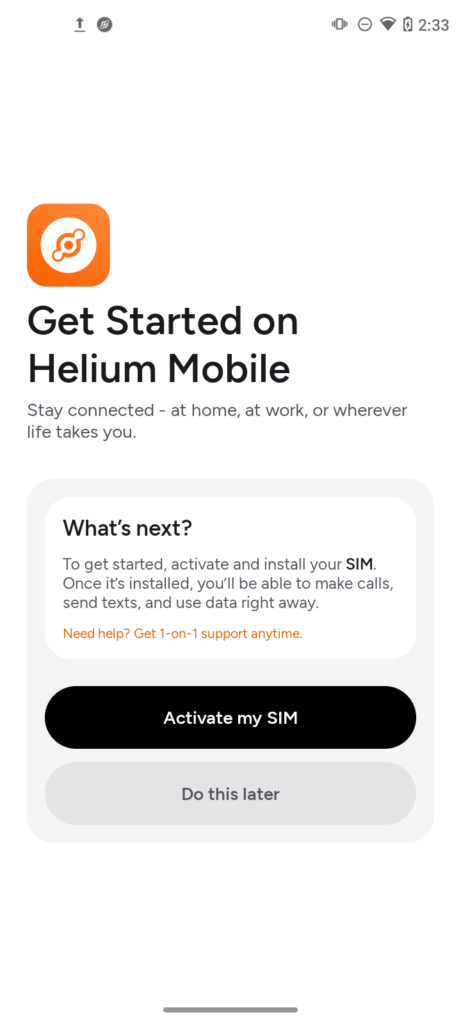
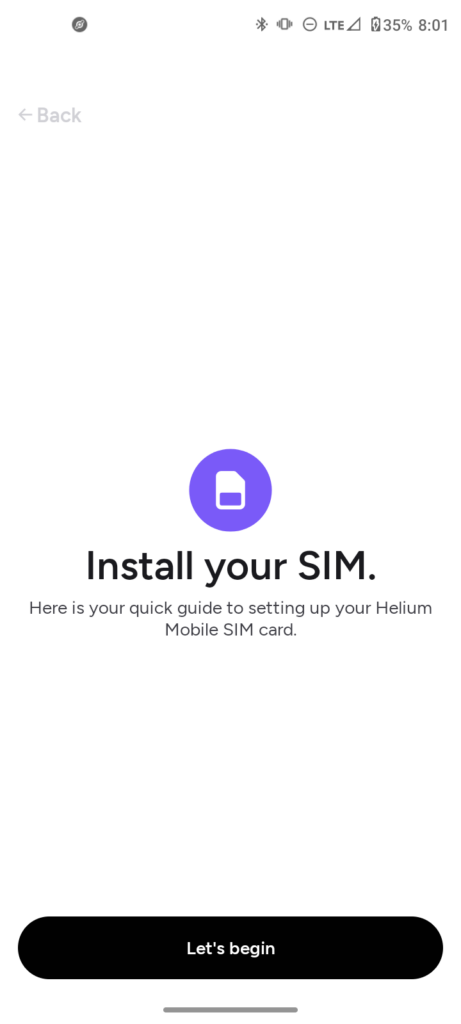
Now tap on install my sim
Tap in “Begin”.
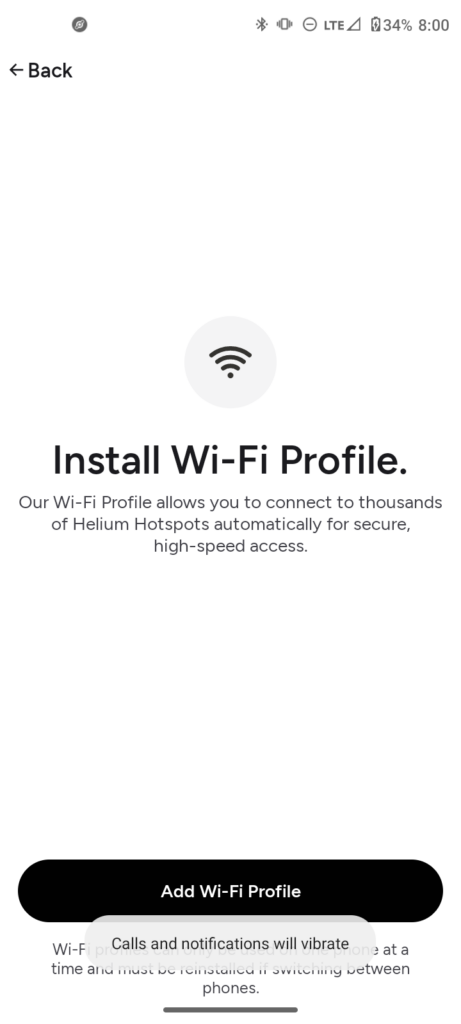
You will be required to install a Wi-Fi profile. You will be able to connect to Helium Mobile hotspots. Tap on “Add Wi-Fi profile”.
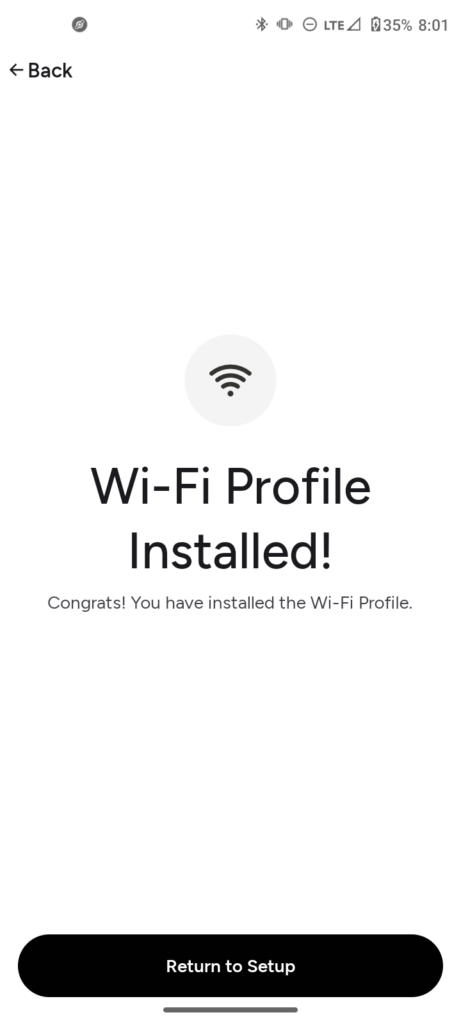
Now that you have installed the “Wi-Fi profile”, now tap on “Return to setup”.
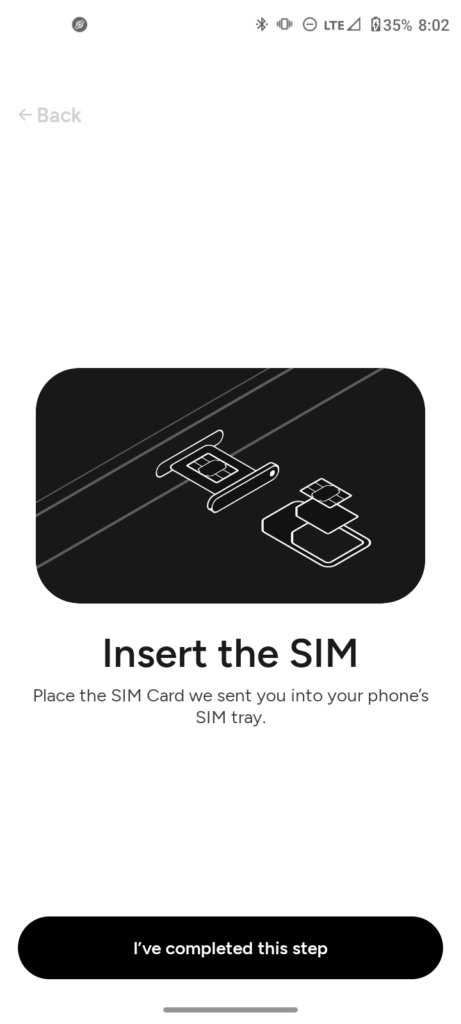
Now we need to activate the Sim card, If you have not inserted your Sim card into your phone, please insert your Sim card into your phone and then tap on “ I’ve completed this step”, If you already have inserted your Sim card, then just tap on “ I’ve completed the step”.
On the next screen, but not pictured it will take a few minutes for it to activate.
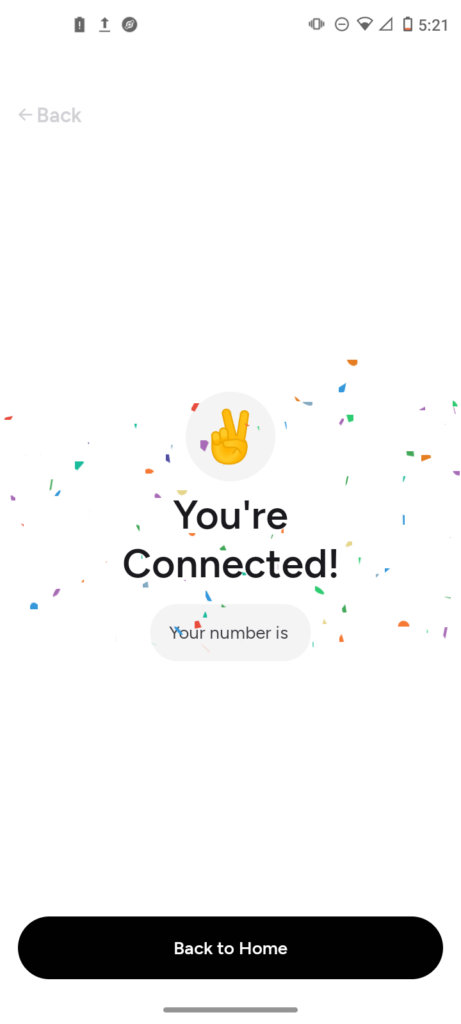
CONGRATULATIONS! You are officially done. You can now start enjoying your Helium Mobile service. (I took a snapshot of the screen prior to my phone number showing).
.
.