How to use AirDrop on an Apple iPad?
admin / November 20, 2019
This afternoon I decided to go and check out Kmart and buy a few things before they officially close for good in our area (York County, Virginia) and of course I couldn’t help myself but not to take a few pictures, the only problem was, the photo where taken with my old iPad and I wanted to have them on my new iPad because the screen is much bigger.
I thought using AirDrop was going to be extremely complicated but I was truly surprised how is it in anyway I decided to create A simple guide.
On the device that you want the pictures to appear go to settings and type in AirDrop, it is going to be the second option from the list. I mean it’s not like you really have that many choices anyway.
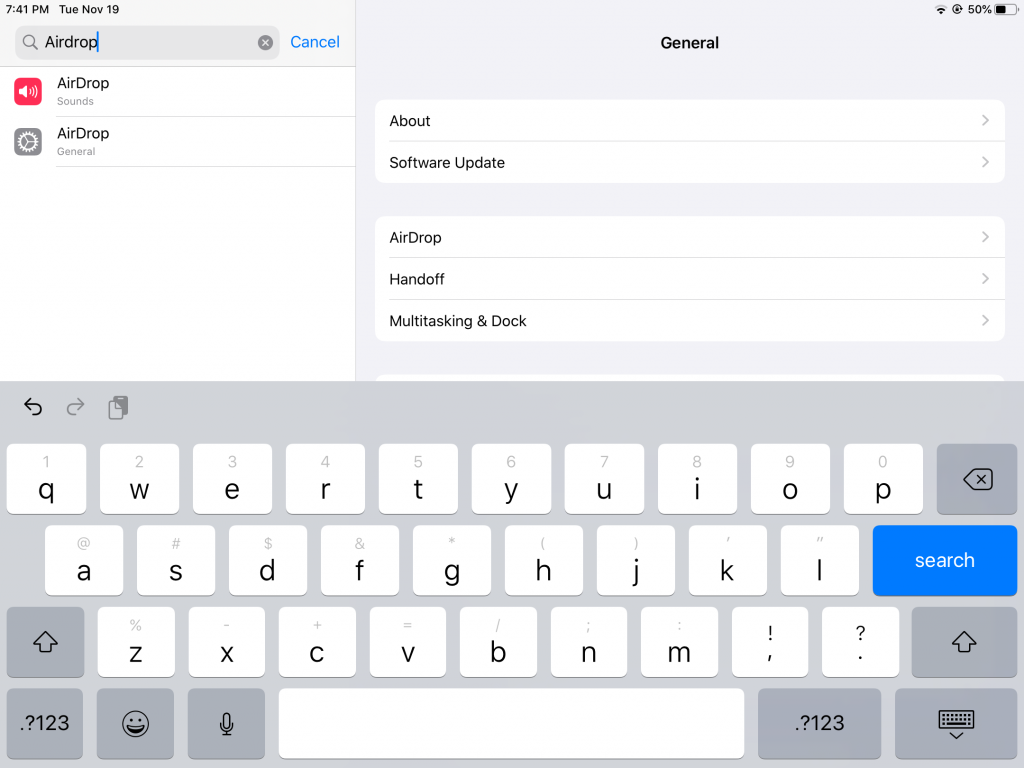
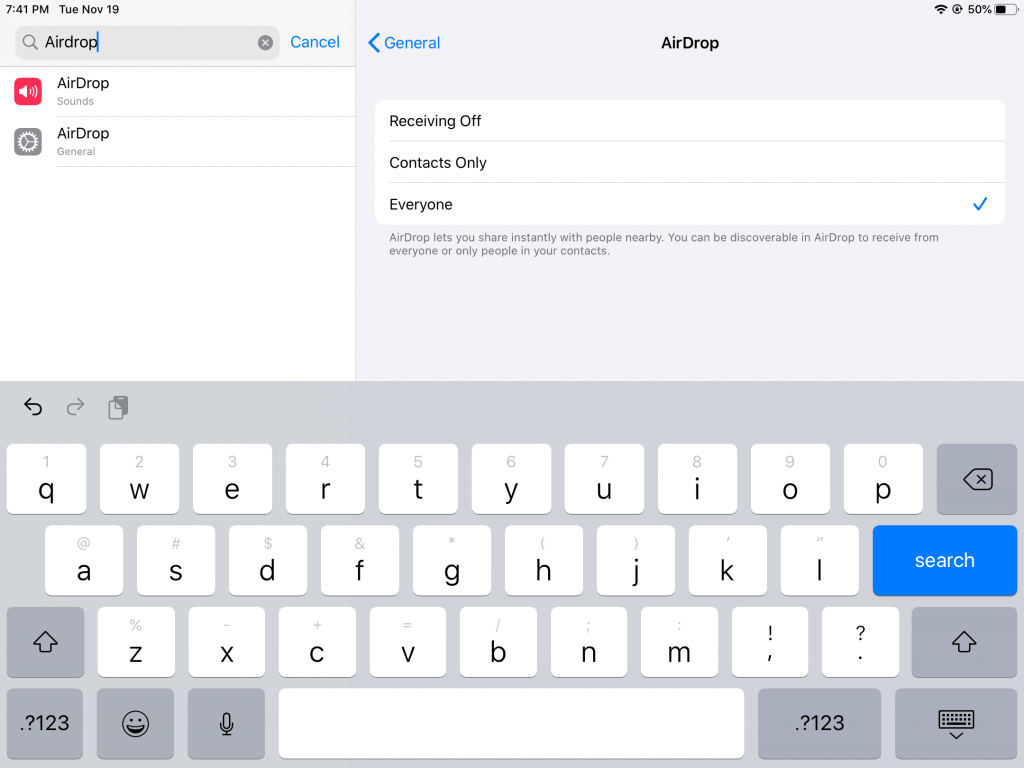
In the screenshot below you will have three options receiving off, contacts only and everyone. Because I’m only transferring pictures just this one time I just opted to choose for everyone.
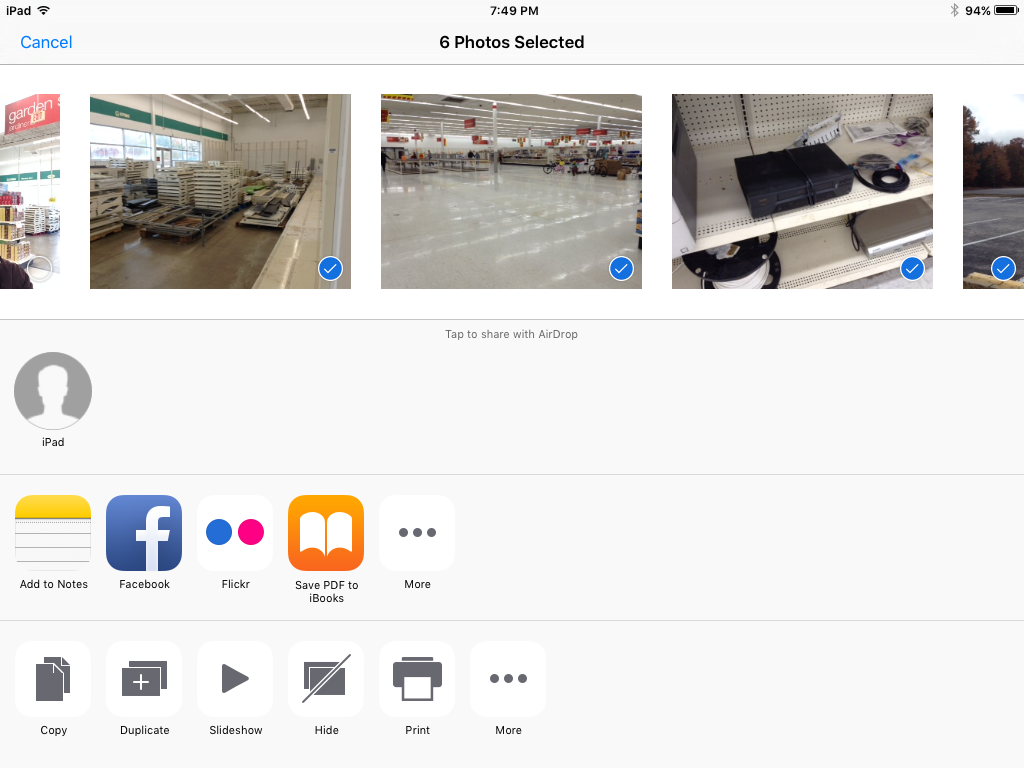
Now on your other iPad, select the photos you want to transfer, then click in the Icon that looks like a piece of paper with an arrow pointing up and you should see the device you want to send those photos to. When you see the device you want to send the photos to click on the device. After clicking on the device you want to send the photos to it will stay “working…”.
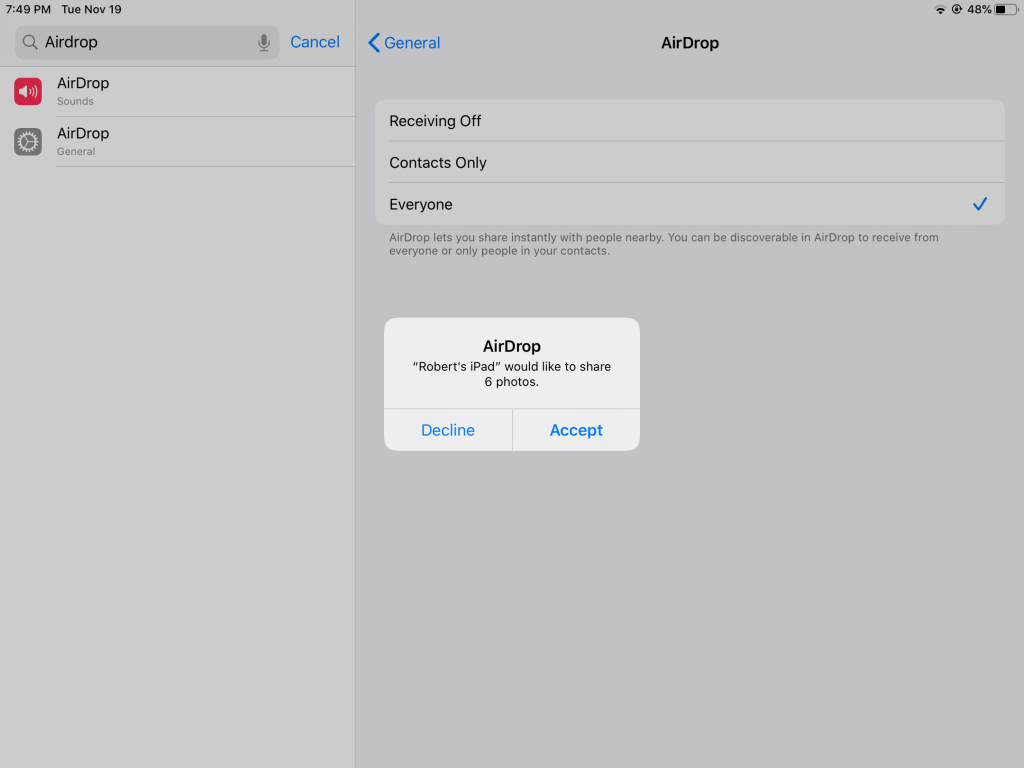
Before the photos will be transferred successfully you will need to click on “Accept”.
Once you click on “Accept” it will bring you to the last photo that was transferred and they will appear in the order as if you were taking a picture on the device not when they were originally taken, so finding them should be pretty easy.